1
2
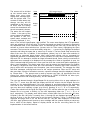
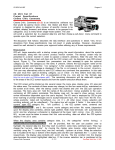
The screen will be divided
HTL Screen Layout
Areas
Line
up into several areas: the
HyperText LimitedHyperChapter 1
Status
HyperBook
status area, menu area,
Open Close Links Notes Return Help Exit
2
Menu
display area, message area,
and the prompt area. The
3
contents of these areas may
change, but they will be
Display
maintained on the screen at
Area
all times, after the startup
screen has cleared and until
the exit command is chosen.
The status line will contain
22
3 fields: 1. the name of the
Message
23
current opened HyperBook,
left justified; 2. the HTL
Prompt
24
system name, centered and
inversely displayed; 3. the
name of the current HyperChapter, right justified. The menu area displays the HTL operations,
which are selected in one of two ways. The menu commands may simply be chosen by depressing
the capitalized letter of the command name. Or alternatively the user may hit the tab key to
activate an inverse video selection bar, (inverse color for Turbo users), highlighting the Open
command. The bar can be moved horizontally using the ← → cursor keys to highlight the desired
operation and hitting the space bar or return key to invoke it. The bar should wrap around at the
ends of the menu line. In addition, if the backspace, (delete), key is hit then menu selection is
exited with no command being chosen. After initial system startup, with no command line
HyperBook specified or immediately after a Close operation, the only active commands are Open,
Help and Exit. An attempt to activate an illegal command should cause a bell to sound and an
appropriate error message to be displayed on the message line. When a HyperBook is open, the
Open command shall be inactive as a user must first close the current book before attempting to
open a new HyperBook. The display area will be used to present the HyperChapter file contents
for reading, a HyperLink menu when the Links command is selected, (see Links command), a
pop-up notes menu and pop-up note information, (see notes command). The message line shall
hold brief messages, warnings and errors for the various operations. When an HTL action will
take more than a couple of seconds to execute, a specific message should be displayed, followed
by “Please Wait...”. The prompt area is used to request user input. All input/output from the
prompt line, unless explicitly noted, will be buffered, i.e. READ & READLN. All other input,
(command selection and scrolling actions), will be unbuffered.
The user may browse through a HyperChapter file by moving either a line or page up/down at a
time. The ↑ ↓ cursor keys will allow the display area 20 line window into the chapter file to be
scrolled one line backward/forward. If the user attempts to scroll above/beyond the top/bottom
of the file an error message should be inversely displayed and the bell (control-h) sounded. The
user may also scroll up/down a 'page' at a time by pressing 'U' or 'u' / 'D' or 'd' respectively,
(Turbo users should use the PgUp and PgDn keys). HTL will also allow the top or bottom of the
chapter file to be moved to directly, by the user depressing either the ‘T’ or ‘t’ / ‘B’ or ‘b’
keys, respectively. The display area should never contain blank lines for files with >20 lines.
Consider a file with 100 lines, if currently lines 11 through 30 are displayed and page up is hit
the first 20 lines in the file should now be on the screen. Similarly, if lines 71 through 90 are
displayed and page down is hit, the last 20 lines (81..100) are then displayed. For files with
<20 lines, page up/down would receive an error message and line up/down should not cause any
line to scroll off the display. Speed of display should not be the over-riding factor for the
implementation of the browse actions.