1
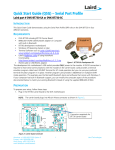
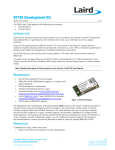
BTM410-411 Development Kit Quick Start Guide does not provide a Bluetooth 2.1 driver for Windows XP. Since the USB dongle only supports Bluetooth 2.0+EDR, it does not have Bluetooth 2.1 functionality on Windows Vista or 7. DEVELOPMENT BOARD SETUP 1. Connect the USB Cable (used for power and communications) from PC to development board. a. On the first connection, you must install the USB to RS232 driver. Download the latest WHQLqualified driver from www.ftdichip.com. b. Point the Windows driver install wizard to the location of the downloaded driver. c. Optionally, you can power the device via 5 V DC. 2. Select the power source via the 3-way switch. Center = off DC = power via USB USB = power via DC 3. Start EZURiO Terminal. 4. Select the correct COM Port (refer to Device Manager, if necessary). 5. Select BAUD rate (default is 9600 bps). 6. Check the CTS LED in EZURiO Terminal. If it is green, it is connected to the correct COM port. AT MODE BASIC COMMAND REFERENCE Command Response AT OK ATI3 Firmware version number ATI4 Bluetooth Address AT+BTIN List discoverable Bluetooth devices with friendly name AT&F* Reset to factory default AT&W Save settings to non-volatile memory ATZ Software reset ATD<BT Address> Call BT device ATH Hang up connection ^^^ Local Command Mode DATA CONNECTION (PC -> BTM41X) Set up the module: 1. Start EZURiO Terminal (included on CD or downloadable from www.lairdtech.com/wireless). 2. Enter the following commands: AT&F* // reset to factory defaults ATS512=4 // make device discoverable and connectable ATS0=1 // auto answer after 1 ring AT+BTK=”1234” // set the pin code AT&W // save the settings to flash memory ATZ // software reset the device 3. Open Bluetooth devices (Control Panel –> Bluetooth devices). Embedded Wireless Solutions Support Center: http://ewssupport.lairdtech.com www.lairdtech.com/bluetooth 2 Laird Americas: +1-800-492-2320 Europe: +44-1628-858-940 Hong Kong: +852 2923 0610