1
Chapter 9: Setup & Manage Communication Links
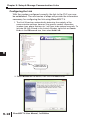
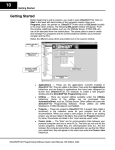
NOTE: The COMM ports shown in the window below are those which
DirectSOFT 6 will attempt to use. Simply because a COMM port is shown
in the list does not mean the port actually exists on the PC. Open
Windows Control Panel and verify that a port exists in Device Manager.
NOTE: The comm port on your PC may have to be enabled (example,
COM5). See Appendix B, DS600.ini File
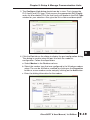
2. The next window will show a list of PLC Families. Select the PLC
family by clicking on the appropriate choice. If you are unsure of the
PLC family but know which communications protocol to use, select
“Not Sure”. If you are using a DirectLOGIC compatible PLC, the Link
Wizard will try and detect the PLC type automatically. Click Next when
you are finished.
DirectSOFT 6 User Manual, 1st Edition
1
2
3
D
5
6
7
8
9
0
1
2
3
4
A
B
C
D
9-3