1
Shipping Manager : user manual I V.1.0 I January 2014
1. Homepage
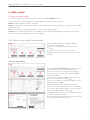
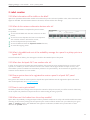
1.1. How does the homepage look like?
1
2
3
4
5
6
7
12
8
13
9
10
11
14
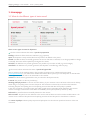
1.1.1. Top menu
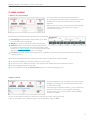
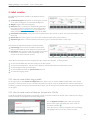
The browsing menu provides you with an overview of the status of orders, tracking parcels and latest bpost news;
Homepage:
1
2
3
4
5
6
7
O
rders: overview of the shipments of all related accounts;
P
ick-up request: overview of pick-up requests and pick-up lists;
Admin: overview of the addresses of senders, receivers, pick-up addresses and settings for the integration of the
Shipping Manager front-end in an online shop;
Icon: This icon enables the user to return to the bpost portal to view the whole range of available applications;
W
elcome: view of the user account;
Sign off: enables the user to return to the bpost site and to disconnect the application;
Help: this link opens a new page with FAQs.
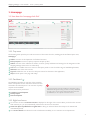
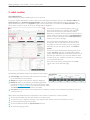
1.1.2. Dashboard ( 8 )
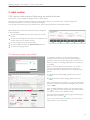
The dashboard provides an overview of the complete
status of shipments for the selected customer account
and within the selected period. An overview of pickup
requests is also available.
Three actions can be performed:
9 Creation of a new shipment
10 Pickup request
11 Search a shipment
• If several customer accounts are linked to each other, several
dashboards will appear starting off with a summary dashboard.
• In order to carry out an action, the buttons have to be used
per dashboard, i.e. for a specific customer account.
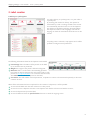
1.1.3. Right-hand menu
12
13
14
A
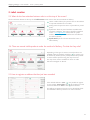
n overview of various customer accounts is displayed to the right of the screen. When you click on the account
that interests you, you are automatically redirected to the account concerned.
News from bpost is published on a regular basis to keep you informed about the transport of national and
international parcels.
Our contact details are indicated in order to facilitate accessibility to our customer service department.
3