1
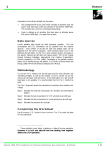
USER MANUAL - EuPeco-profiler 1.0 Insert case study as a Sub-flow: this function allows taking advantage of existing “case studies” (or parts of them). A “case study” can be inserted as a “sub-flow” into the structure of a new/existing “case study” by following these steps: i) select the “case study” that will be inserted in, ii) select the destination position or “flow” and iii) apply this function, indicating the number of units to be inserted in. Export the content of the “Characterisation” screen to an Excel file. Expand / Collapse flows or columns. Undo last changes made in a “case study”. A similar menu will be displayed by using the right button of the mouse. “FLOW” and “COMMENTS” columns allow entering the most useful info for users. Cells of the “FAMILY” column have a pop-up menu. The most appropriate family for each defined “flow” should be selected (i.e. plastics, metals, manufacturing, etc.). Once the “FAMILY” has been fixed, the same procedure should be followed in the “MATERIAL / PROCESS” column, for selecting the most appropriate material or process for each “flow” (see ANNEX 1 for knowing available families and materials/processes). Once the “FAMILY” and the “MATERIAL / PROCESS” have been fixed, the tool will automatically display the units for each “flow” in the “UNITS” column. These units must be used for expressing the required quantity of each “flow” in the cells of the “VALUE” column. These quantities must be also consistent with the “case study” functional unit (see Figure 5). Figure 5.- “Characterisation” of a product Copyright © SIMPPLE 2010 - All rights reserved Page 10 of 21