1
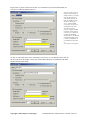
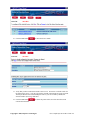
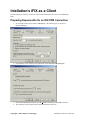
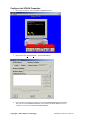
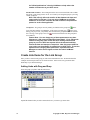
To learn more about
using Kepware’s OPC
QuickClient with
KepserverEx, see the
KepserverEx help file
“Designing a Project
(Saving and Testing the
Project)”.
6.
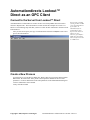
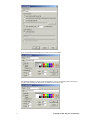
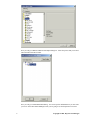
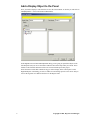
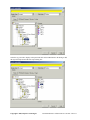
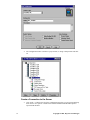
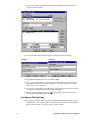
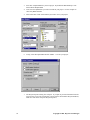
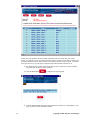
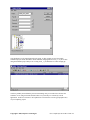
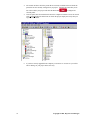
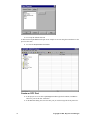
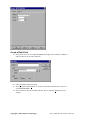
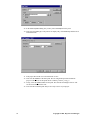
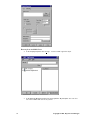
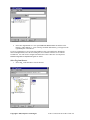
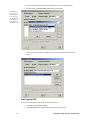
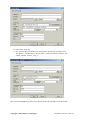
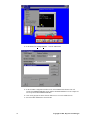
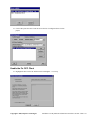
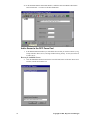
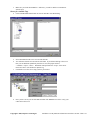
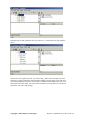
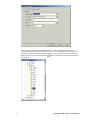
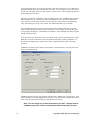
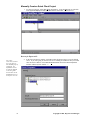
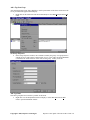
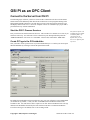
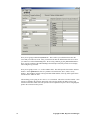
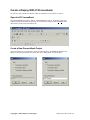
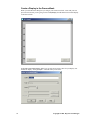
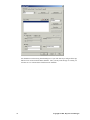
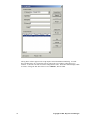
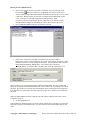
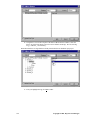
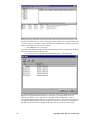
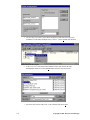
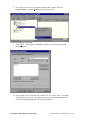
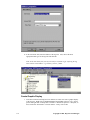
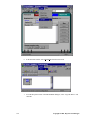
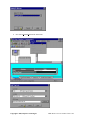
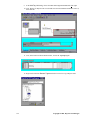
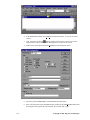
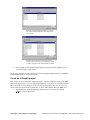
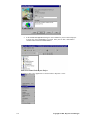
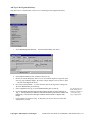
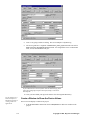
Using the tree view in the left display of the OPC Address Browser, select the Device or
Group from which you wish to select Address items/tags. In the right hand pane, double
click to add an item. In this example, Tag_1 in Device_1 on Channel_1 has been selected.
Remember that these are items that have already been created in our Server Demo Project
(Simdemo.opf). Also, you can view all possible address types and create a dynamic item
by choosing “ _Hints” under the device name in the tree menu.
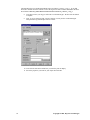
7.
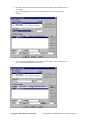
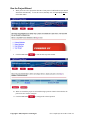
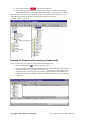
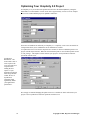
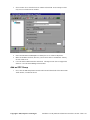
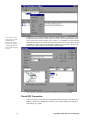
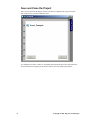
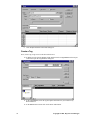
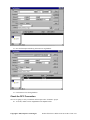
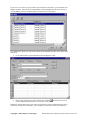
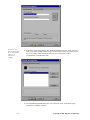
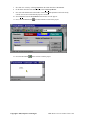
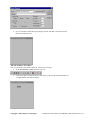
Once you have selected all of the items to be displayed by the client, click OK
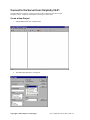
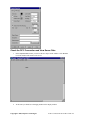
Check OPC Connection
8.
80
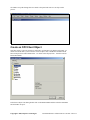
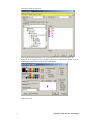
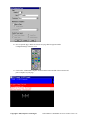
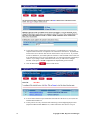
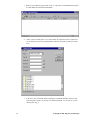
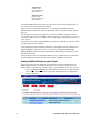
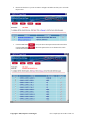
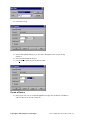
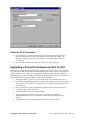
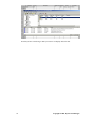
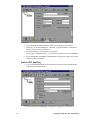
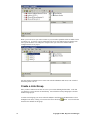
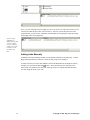
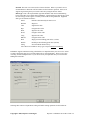
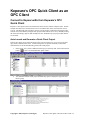
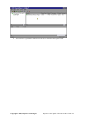
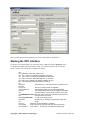
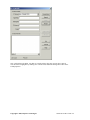
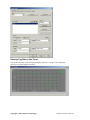
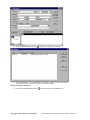
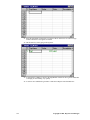
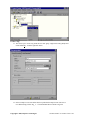
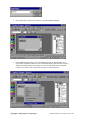
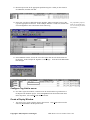
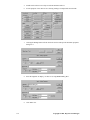
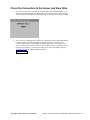
Next we are going to verify that we are getting data from KepserverEx. You should see a
Quality of "Good" in the Tag Monitor window for the tag and a Value that is ramping or
incrementing very quickly.
Copyright © 2001, Kepware Technologies