1
Setup
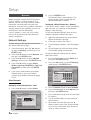
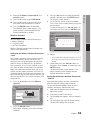
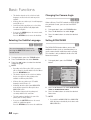
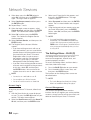
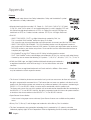
To enter the Network settings into your player,
follow these steps:
1. Follow Steps 1 through 5 in the ‘Setting Up
the Wireless Network Connection - Auto’
procedure.
2. When done, press the ▲▼◄► buttons to
move the cursor to Done, and then press the
ENTER button. The Network Status screen
pp
appears.
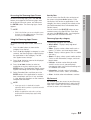
IP Settings
Display
IP Mode
Network
IP Address
System
Subnet Mask
Languagee
Security
General
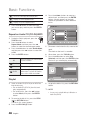
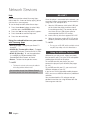
The easiest way to set up the wireless network
connection is using the WPS(PBC) function or the
One Foot Connection function.
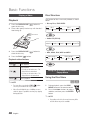
If your wireless router has a WPS(PBC) button,
follow these steps:
1. Press the ▲▼ buttons to select WPS(PBC).
(
)
Settings
ettings
Network Settings
Display
spla
Select a network connection type.
udio
Audio
Settings
ngs
Audio
WPS(PBC)
Gateway
DNS Mode
0 . 0 . 0 . 0
DNS Server
Support
Network
ettwo
Manual
0 . 0 . 0 . 0
0 . 0 . 0 . 0
0 . 0 . 0 . 0
Manual
System
yste
Wired
Language
angu Wireless
(general)
ecurr
Security
WPS(PBC)
enerr
General
One Foot
Support
uppo Connection
C
Connect
to the Access Point easily by pressing the
WPS(PBC) button. Choose this if your Access Point
W
ssupports Push Button Configuration(PBC).
> Move " Enter ' Return
OK
> Move " Enter ' Return
2.. Press th
the ENTER button.
b tt
3. On the Network Status screen, select Cancel,
and then press Enter.
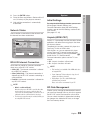
4. Press the ◄► buttons to select IP Settings,
and then press the ENTER button.
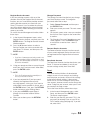
5. Press the ENTER button to select IP Mode.
6. Press the ▲▼ buttons to select Manual, and
then press the ENTER button.
7. Press the ▼ button to go to the first entry field
(IP Address).
8. Use the number buttons to enter numbers.
9. When done with each field, press the ►
button to move successively to the next field.
You can also use the other arrow buttons to
move up, down, and back.
10. Enter the IP Address, Subnet Mask, and
Gateway values.
11. Press the ▼ to go to DNS Mode.
12. Press the ▼ button to go to the first DNS
entry field. Enter the numbers as above.
3. Press the WPS(PBC) button on your router
within two minutes. Your player displays the
Network Selection Screen, and automatically
acquires all the network settings values it
needs and connects to your network. When
it is done, it displays an OK button. Press the
ENTER button on your remote.
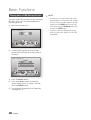
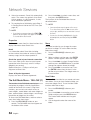
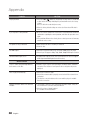
One Foot Connection
You can set up the wireless connection
automatically if you have a Samsung Wireless
Router which supports One Foot Connection. To
connect using the One Foot Connection function,
follow these steps:
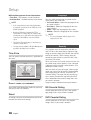
1. Press the ▲▼ buttons to select One Foot
Connection.
Settings
ettings
Network Settings
Display
spla
Select a network connection type.
udio
Audio
Network
ettwo
System
yste
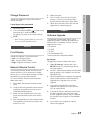
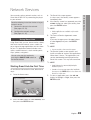
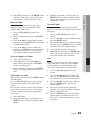
13. The Network Status screen appears. The
player connects to the network after the
network connection is verified.
Wired
Language
angu Wireless
(general)
ecur
Security
WPS(PBC)
General
enerr
One Foot
uppoo Connection
Support
Connect to the wireless network automatically if your
Access Point supports One Foot Connection. Select
tthis connection type after placing the Access Point
w
within 10 inches (25Cm) of product.
> Move " Enter ' Return
34
English