1
6
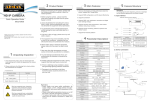
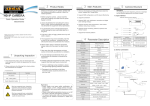
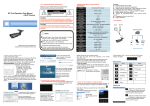
8 Computer Client Connection
Quick Configuration Tool
1. Install Computer Client Software CMS
Find out the document “HeroSpeedCMS.exe”,
make a copy in your computer and double click to
install it .
2.Search Add Device
Click “Search Device” to search for device in LAN,
or add device manually.
1.Install Client Software
Find out the document“IP Search.exe”,
make a copy in the computer and double
click to open it.
As shown in the picture:
※ Add device manually: Configuration→Device Management
→Add Manually
2
3
1
※ Search to add device: Configuration Management→Device
Management→ Add Device→ Online Searching→ Query
→ Select Device
3
2
1
2. Change the Camera’s IP Settings
Make sure IP camera is connected, and
click Search to search the IP camera, find
it, click it, and then change the IP settings.
Finally, click Modify IP to confirm the change.
As shown in the picture:
5
4
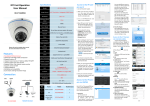
7 IE Connection
9 Mobile Client Connection
1.Browser settings
Open your IE browser ,Click Tool→ Internet Option→ Security→ Customized Level→ Active X
1. Install Mobile Monitoring Software
Enter URL on your phone: www.danale.com,
download and install mobile monitoring software
“Danale”.
Control and Plug-in, select all "Enable".
2. Enter URL : http://192.168.1.168
3. Install control
An OCX control is needed in your computer for
the first IP camera installation, click the pop up
tip "OK" and install OCX control.
As shown in the picture:
6
4. User login
Refresh the website and enter correct user name
and password.
Both the default user name and password are
admin.
2. Add Device
Click “Add Device ”, enter device name, serial number
and password (You can directly scan the QR code to
get the device serial number ).