1
Gmail
Gmail
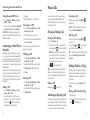
Replying to or Forwarding a
Message
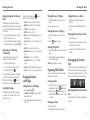
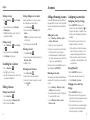
1.Open the Gmail message you want to reply to or
forward to another person.
2.Choose one of the following:
• R eply to the sender, tap
header.
in the message
• R eply to the sender and all recipients of
the original message, tap in the message header
> Reply all.
• Forward the message, tap in the message header > Forward.
3.Edit your message and tap
.
Working With Received
Attachments
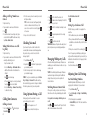
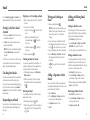
When a message has an attachment, Gmail displays
information about it in the ATTACHMENTS section of
the email.
Depending on the attachment type, the applications
installed on your phone as well as your settings, you
may tap to preview, view, or save the attachment.
TIP: For documents with multiple pages, tapping the
Preview option will only download the pages you
view, while tapping other options may download the
entire file and cost more time and data.
38
Searching for Messages
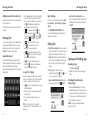
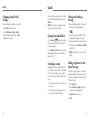
You can search for messages using words that appear
in addresses, subjects, labels, or contents.
NOTE: If you search while the phone doesn’t have an
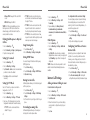
Adding or Changing a Label
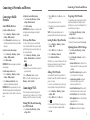
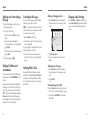
1.Open the Gmail app and tap in the message list
the sender images next to the messages you want
to label.
active Internet connection, only messages synchronized
onto your phone can be searched.
1.Open the Gmail app and tap
Changing Gmail Settings
Press the Menu Key > Settings in any Gmail screen
to change General settings, which apply to all Gmail
accounts, or other settings that only apply to specific
accounts.
.
2.Enter the words to search for and tap the search key
on the screen keyboard.
As you type, suggestions may appear below the search
field. Tap a suggestion to search for it.
3.In the search results, tap the message you need
and work with it just as you would with any Gmail
message.
Working With Labels
Message labels include both labels you create and
default labels such as Sent, Starred, and Outbox. You
can organize your emails by labeling them or adding
stars to them. Labels also help you sort your messages,
just like folders.
2.Tap > Change labels.
3.Check or uncheck labels in the new screen and
tap OK.
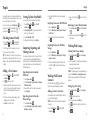
Adding Stars to Messages
1.Open the Gmail app and tap in the message list
the sender images next to the messages you want
to star.
2.Tap > Add star.
Viewing Messages by Label
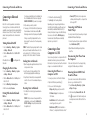
1.Open the Gmail app and tap the current account at
the top of the screen without checking any message.
2.Tap a label below ALL LABELS to view messages
with that label.
39