1
KINNEXUS 2.0 173
Advanced User’s Manual
field. The order of the task icons in the Current
favorites field is the same as the order of the task
icons in the Favorites tab.
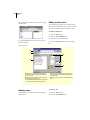
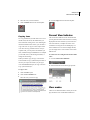
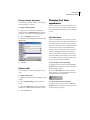
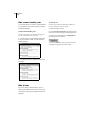
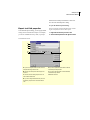
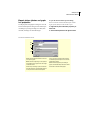
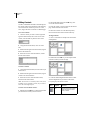
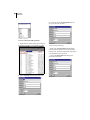
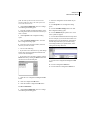
1 Click Tools>Configuration. The User Configuration Management dialog opens.
2 From the Available Configurations dialog, select
the configuration whose Favorites tab task icons you
want to reorder.
3 Click Properties. The Configuration dialog
opens.
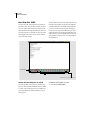
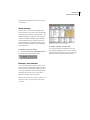
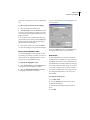
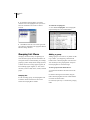
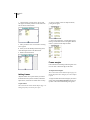
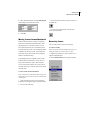
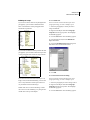
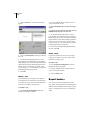
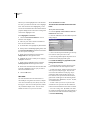
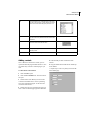
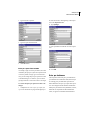
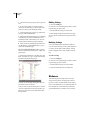
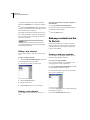
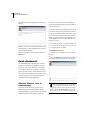
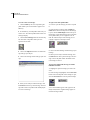
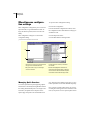
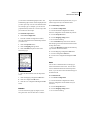
4 Click the Task Bar Settings button. The Task
Bar Configuration dialog opens.
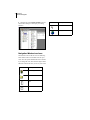
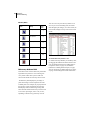
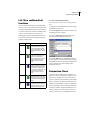
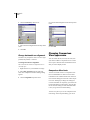
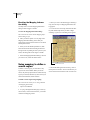
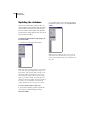
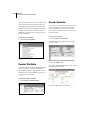
5 From the Current Favorites window, select the
task icon you want to reorder.
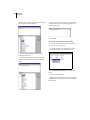
2 Select the configuration whose default tab you
want to set.
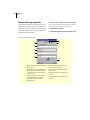
3 Click Properties. The Configuration dialog
opens.
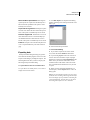
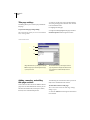
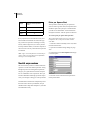
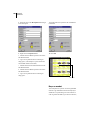
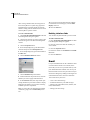
4 Click the Task Bar Settings button. The Task
Bar Configuration dialog opens.
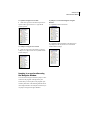
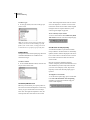
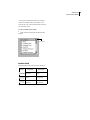
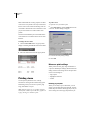
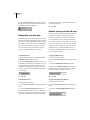
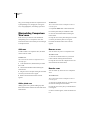
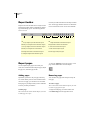
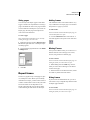
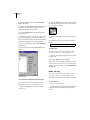
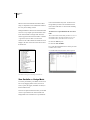
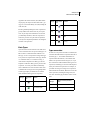
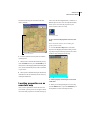
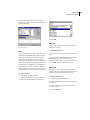
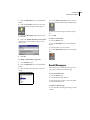
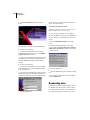
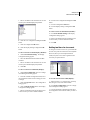
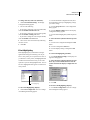
5 Click the Default tray drop-down arrow. A list
of the system tabs appears.
6 Click the desired default tab from the drop-down
list. For example, if you want the Search task icons
Displayed when you open Kinnexus, select Search
from the drop-down list; if you want the Listing
icons Displayed when you open Kinnexus, select
Listing from the drop-down list.
6 Do one of the following:
• If you want to move the task icon up, click the Up
button. Keep clicking the Up button until the task
icon is in the desired place.
• If you want to move the task icon down, click the
Down button. Keep clicking the Down button until
the task icon is in the desired place.
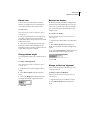
7 Click the User Configuration Management OK
button.
8 Click the Configuration OK button.
9 Click the Task Bar Configuration OK button.
7 Click the User Configuration Management OK
button.
8 Click the Configuration OK button.
9 Click the Task Bar Configuration OK button.
To select a default tab:
1 Click Tools>Configuration. The User Configuration Management dialog opens.