1
8. Using On-Screen Menu
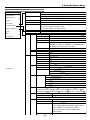
Ref. Adjust
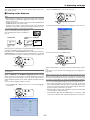
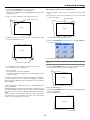
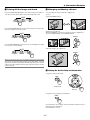
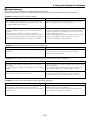
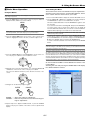
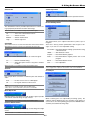
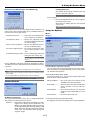
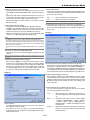
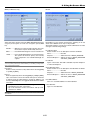
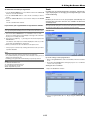
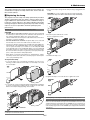
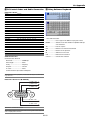
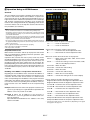
Using 3D Reform
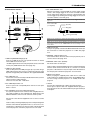
This feature corrects trapezoidal distortion so that the projected
image is rectangular.
Two options are available for correcting procedures.
You can save adjustment settings by using the 3D Reform Save
option on Setup (See page 8-16).
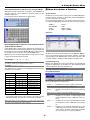
Cornerstone
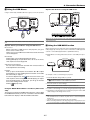
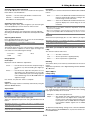
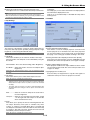
Position
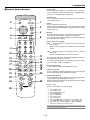
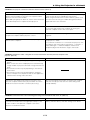
This feature adjusts the vertical position of the image when viewing video with an aspect ratio selected.
When some aspect ratios are selected in Image Options, the
image is displayed with black borders on the top and bottom.
You can adjust the vertical position between top and bottom.
NOTE: This option is available only when "1.78:1 (16:9)", "1.85:1" and "2.35:1 " are
selected in Screen Type and Aspect Ratio.
NOTE: During 3D Reform adjustment, "Screen Type" and "Screen Position" may not
be available. To make available, first reset the 3D Reform data and then do settings
again. Secondly repeat the 3D Reform adjustment. Changing "Screen Type" and
"Screen Position" can limit 3D Reform in its adjustable range.
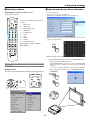
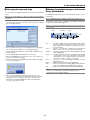
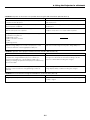
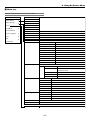
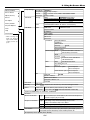
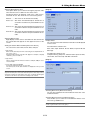
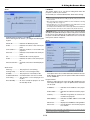
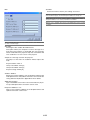
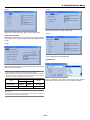
Reference White Balance [Ref. White Balance]
See page 3-4.
* When "Resolution" is set to "Native", "Cornerstone" and "Keystone" are not available.
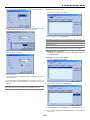
Keystone
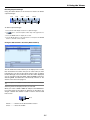
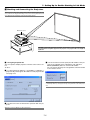
1. Press the SELECT 왗 or 왘 button to adjust the horizontal keystone.
Brightness R/G/B, Contrast R/G/B
This feature adjusts the white balance that is used as a reference. This adjustment affects all sources.
2. Press the SELECT 왖 or 왔 button to select "Vertical".
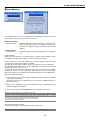
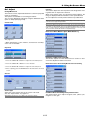
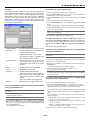
Reference Color Correction [Ref. Color Correction]
3. Press the SELECT 왗 or 왘 button to adjust the vertical keystone.
4. After completing, press the ENTER button. This will return to the menu
screen.
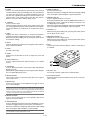
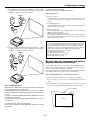
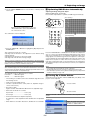
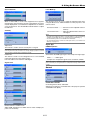
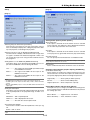
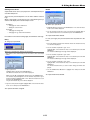
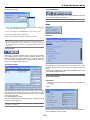
Screen
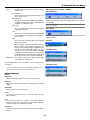
Screen Type
Select the correct aspect ratio for the screen to be used.
See also "Aspect Ratio" on page 8-10.
NOTE: When "Resolution" is set to "Native", this selection is inactive.
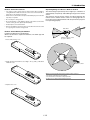
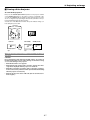
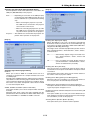
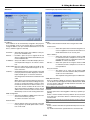
Red/Green/Blue/Yellow/Magenta/Cyan/Color Gain
This option allows you to adjust red, green, blue, yellow, cyan,
magenta or color gain.
8-12