1
CyBlock Software User Guide v.9.2.0
Interactive Reports
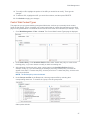
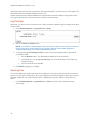
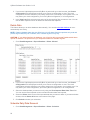
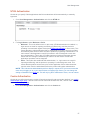
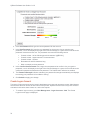
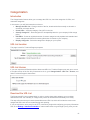
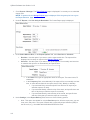
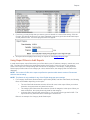
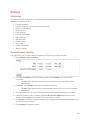
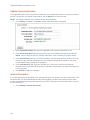
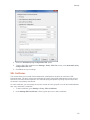
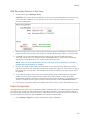
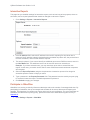
This page lets you establish settings for Interactive reports, such as how long to keep reports, where to
store them, and a required password that should be changed to retrieve the reports.
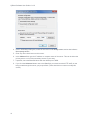
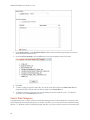
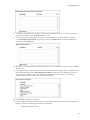
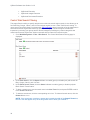
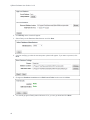
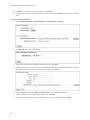
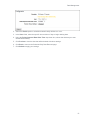
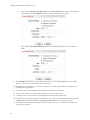
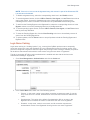
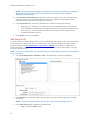
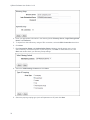
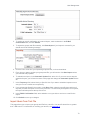
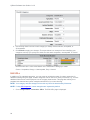
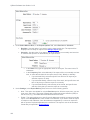
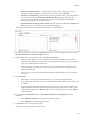
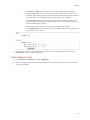
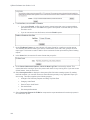
1. Go to Settings - Reports - Interactive Reports.
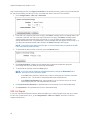
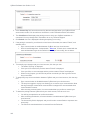
2. In the IP Address field, select the IP address to be used for reporting if a drop-down box is
present. If the IP address is plainly displayed with no available drop-down box, the product found
one NIC IP address, and no further action is required.
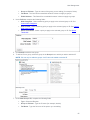
3. This step is optional. If you want to identify an additional report server DNS host name, enter it in
the Host Name field. This additional server can be used for internal or external use.
Example: If you have external users, you may want them to be able to access Web-use
reports. In this case, you would use this field to enter a DNS host name that external computers
will recognize.
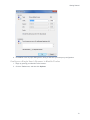
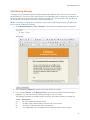
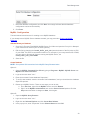
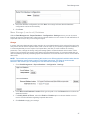
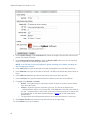
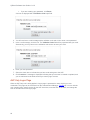
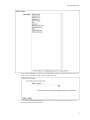
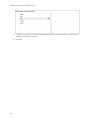
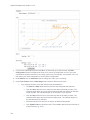
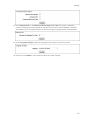
4. Select the Report Expiration using the drop-down box. Interactive reports will no longer be
accessible past the number of days you select.
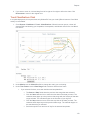
5. Type a password in the Reports Password field. This password must be used by anyone trying
to access an Interactive report. The default password is password.
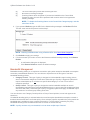
6. Click Submit to apply your changes.
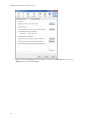
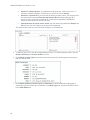
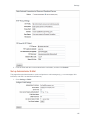
Participate in OtherWise
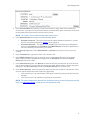
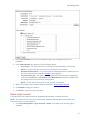
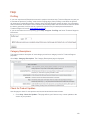
OtherWise is a service provided by Wavecrest that helps reduce the number of noncategorized sites. By
participating in OtherWise, the top noncategorized site data will be sent to Wavecrest Computing site
analysts. This data does not contain user names and is held in strict confidence. For more information on
OtherWise and Wavecrest´s privacy policy, please see Wavecrest´s OtherWise Program & Policy in
Appendix C.
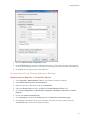
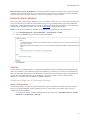
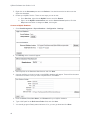
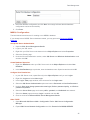
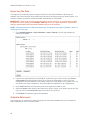
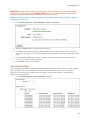
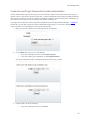
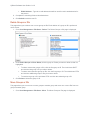
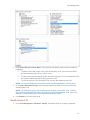
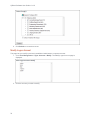
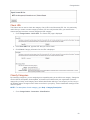
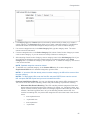
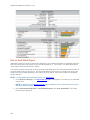
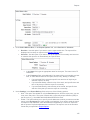
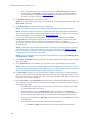
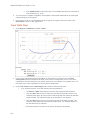
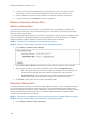
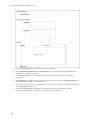
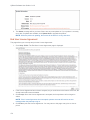
1. Go to Settings - Reports - OtherWise.
164