1
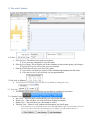
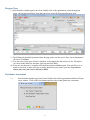
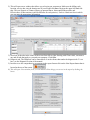
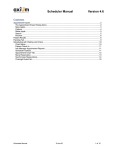
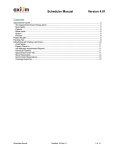
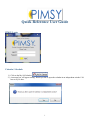
3.) This is the Calendar :
4.) Filters:
a. Filter by User- This allows you to pick any employee
1) To see your own calendar pick your own name
b. Filter by User Group- This will show you all the calendars for the provider group you belong to.
2) If you pick N/A you will see only your own calendar
c. Filter by Client- this will give you a list of you clients
3) If you select one client you will see all the scheduled appointments for that client.
4) If you leave it at N/A you will only see your appointments.
5.) Day Scale in Minutes:
a. It will default to 15 minutes (you can click on any bubble to change the view)
6.) Time Scale:
a. The default will be 8(am) to 5(pm) but you can adjust it according to your hours.
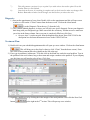
7.) Calendar Views:
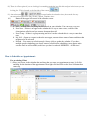
a. Day View – This will show you just the day you select on the left side.
b. Week View – This will show you a full week from Sunday to Saturday.
c. Month View – This will show you a full month (4 weeks)
d. Timeline View – Shows a week without time increments, just list all appts.
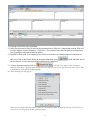
i. You can select to see weekends or not in the Week & Month view. User Columns, show all
users. If you don’t want the canceled appts to be hidden you will uncheck this box.
2