1
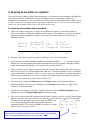
\frac{numerator}{denominator} produces a fraction
\sqrt{radicand} gives a square root, and \sqrt{index}{radicand} gives an nth root
For Greek letters, type the backslash followed by the name of the letter.
\alpha = α , \omega = ω , \pi = π , etc.
Be sure to enclose the expression in $ signs, e.g., $\frac{\pi}{4}$
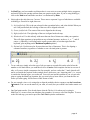
The next four icons on the MathType toolbar all have to do with equation numbers. Note that these are
not problem numbers, as in a test or quiz. They are equation numbers like you may see in a textbook or in
a journal article when the author needs to refer to a particular equation number in the text of the article.
There are very few times when a primary or secondary school math teacher would need to number
equations.
– “Insert Equation Number” – Inserts an equation number at the current position of the cursor. This
icon is most often used to add an equation number to a display equation that’s already in your
document.
– “Insert Equation Reference” – Inserts a reference in the text of the document, and links the
reference to a particular equation number. For example, I may say something like this: “In equation
(4.1) above, the number 2 indicates a vertical shift of 2 units up.” If I were to decide I needed a new
numbered equation above the current equation (4.1), the new equation would become (4.1), and the
current equation would be re-numbered (4.2). Since the reference I wrote above is linked to this
equation number, it also changes to (4.2).
– “Insert Chapter/Section Break” – Chapter and section numbers are not required when you’re
numbering your MathType equations, but if you do use them, you’ll need to change the chapter or
section number when you move to the next chapter or section.
– “Update Equation Numbers” – This icon isn’t needed very often, because when you add an
equation prior to an existing numbered equation, the equation numbers and references that follow
the new equation are automatically updated, as I described above. When you remove an equation
though, the numbers aren’t updated. (They may update when you save or print the document,
depending on how you have your Word options set up.) Selecting this icon will update the equation
numbers immediately.
The last icon on the MathType toolbar doesn’t have anything to do with inserting equations or equation
numbers; this icon affects the entire document.
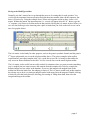
– “Export to MathPage” – This will transform the entire Word document into a nice-looking web
page. For more information on exactly what happens when you click this icon, refer to the tutorial
Creating Webpages with Microsoft Word in the MathType 6 help file (Getting Started > More
Tutorials > Creating Webpages with Microsoft Word).
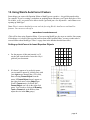
To the right of “Export to MathPage” is the “Browse by” window. You can choose to browse by
equations, equation numbers, or chapter/section breaks. This is similar to the way you can click an icon in
Word and go to the next page.
– Equation Browse – Clicking the right arrow will take you to either the
next equation in the document, and the left arrow will take you to the previous equation.
page 5