1
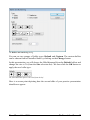
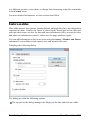
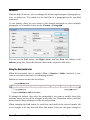
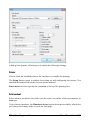
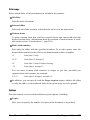
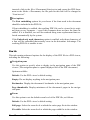
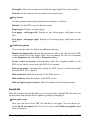
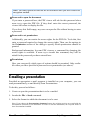
To modify the properties of this icon/image, or the properties of the media object itself, first select the object with a mouse click. Then invoke the Object > Properties command to bring up the associated dialog. Hint: This command can also be invoked by double-clicking on the object. The following settings can be made in this dialog: Format, Filling, Lines, etc. tabs The tabs listed below are present for almost all object types. They allow you to modify the following settings: Format: For changing the size and position of the object. See section “Object properties, Format tab”, page 110. Filling: For changing the filling of the image (or icon) that represents the media object. Only visible if the image/icon has transparent parts. See section “Object properties, Filling tab”, page 111. Lines: For adding border lines to the image/icon. See section “Object properties, Lines tab”, page 113. Shadow: For adding a shadow to the image/icon. See section “Object properties, Shadow tab”, page 114. Effects: For adding various types of effects to the image/icon. See section “Object properties, Effects tab”, page 116. Properties: For modifying common object settings. See section “Object proper- ties, Properties tab”, page 117. For media objects, there are additional tabs with further options: Picture tab On this tab, you can change settings that affect the image (or icon) representing the media object. Options available: Manual Presentations 2016 Working with objects 165