1
Quick Start Guide
Use your phone for more than just talking
• CV
• Music Player
• 1.3 Megapixel Camera with Video Record
• Video Share
See User Manual for Spanish Instructions
Additional charges may apply. Visit att.com for more details.
Phone features subject to change without prior notice.
All phone screens are simulated.
Services may not be available in all markets.
CE
U151105
© 2007 AT&T Knowledge Ventures.
All rights reserved. Subsidiaries and affiliates of AT&T Inc.
provide products and services under the AT&T brand.
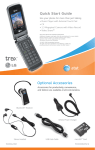
Optional Accessories
Accessories for productivity, convenience,
and fashion are available at att.com/wireless.
Stereo Headset
USB Data Cable
CU515PLUMQSG/AT&T
MicroSD™ Card
Vehicle Power Charger
*Available with the Accessory Bundle
Bluetooth® Headset*
MCDZ0003120 (1.1)
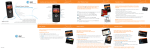
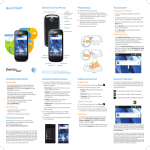
Getting to Know Your Phone
For more details, visit att.com/DeviceSupport.
Speakerphone
Key
Headset/USB/
Charging Port Left
Soft
Key
Camera
PTT Key*
Multitasking
Key
Send Key
Volume
Up/Down
Clear
& Back
Key
microSD™
Port
Right
Soft
Key
OK/Web Key
Camera Key
Power/End
Key
Navigation
Key
Voice
Record
Key
* See Push to Talk insert for more details.
Play Music
Listen to music from your favorite artists right
on your phone. To listen to music that you
have transferred to your phone, follow these
quick and easy steps:
1. Press left on the Navigation Key, select
AT&T Music (3), then Music Player (1).
2. Select All Songs (1), Playlists (2), Artists (3),
Albums (4), or Genres (5).
3. Press
to play/pause. Press up or down on
the Navigation Key to adjust the volume, and
left or right to go to the previous or next song.
4. Press the Left Soft Key for Minimize to
access other phone functionality while music
is playing.
AT&T Mobile Music
AT&T Mobile Music provides the ultimate music
experience. Listen to your favorite music, watch
the latest music videos, and stay in the know
with music news and more.
1. Press left on the Navigation Key, select
AT&T Music (3), and pick from these options:
Transfer and listen to your music with
the integrated Music Player
Stream dozens of commercial-free
music stations with XM Radio
Watch the latest music videos by
clicking on Music Videos
Personalize with ringtones and Answer
Tones™ under Shop Music
Instantly ID the title and artist of a song
with MusicID
Get the latest music news, charts, and
concert info from The Buzz
CV
CV brings your phone to life. Watch news,
sports, weather, and entertainment clips
on the go.
1. From standby mode, press the Left Soft Key
for Menu and select CV (6).
2. Once connected, select the program or
category you wish to view and press
.
Personalize your CV Home Page
1. From the CV home page, select EDIT and
press
.
2. Select the content you would like added
or deleted from your CV home page and
press
.
Note: Parental Controls available. See box insert for
details. Access to CV requires a MEdia™ Max plan.
Transfer Music
1. Make sure your music is in MP3, WMA, AAC,
AAC+, or eAAC+ format.
**microSD card
and USB data
cable sold
separately; go to
att.com/wireless.
2. Insert the microSD™ card* (gold contacts facing
up) into the slot on the right side of the phone.
3. Power on the phone and connect it to your PC
using a USB data cable.*
4. Once the Portable Device screen pops up,
select the second option and click OK.
5. From within Windows Media Player, songs will
populate the left side of the screen. CU515
Music Sync Player should be the destination
for the songs on the right side of the screen.
6. Check/drag** songs to be transferred, then click
the Start Sync button to sync them to the CU515.
**Steps may vary depending
on Windows Media Player
version. Warning! Do not
disconnect phone while file
transfer is in progress.
7. When finished, press the End Key on the phone,
select Yes (1), and disconnect the USB cable.
Requirement: Windows Media® Player 10 or higher.
Not compatible with Mac OS or iTunes.
Take Pictures/Record Video
Capture everything around you in vivid
detail via the 1.3 megapixel camera with
video. Then share it instantly via MMS.
Taking a Picture
1. Press the
Key.
2. Press left or right on the Navigation Key to
adjust brightness and up or down for zoom.*
Press the Right Soft Key for other options.
3. Press
to take the picture. Press the Left
Soft Key to send.
Recording a Video
1. Press and hold the
Key.
2. Select Record Video (2).
3. Press
*1280 x 960 resolution
does not support zoom.
to start and stop recording.
Note: Press left on the Navigation Key to see
your pictures/videos.
Getting to Know Your Phone
For more details, visit att.com/DeviceSupport.
Speakerphone
Key
Headset/USB/
Charging Port Left
Soft
Key
Camera
PTT Key*
Multitasking
Key
Send Key
Volume
Up/Down
Clear
& Back
Key
microSD™
Port
Right
Soft
Key
OK/Web Key
Camera Key
Power/End
Key
Navigation
Key
Voice
Record
Key
* See Push to Talk insert for more details.
Play Music
Listen to music from your favorite artists right
on your phone. To listen to music that you
have transferred to your phone, follow these
quick and easy steps:
1. Press left on the Navigation Key, select
AT&T Music (3), then Music Player (1).
2. Select All Songs (1), Playlists (2), Artists (3),
Albums (4), or Genres (5).
3. Press
to play/pause. Press up or down on
the Navigation Key to adjust the volume, and
left or right to go to the previous or next song.
4. Press the Left Soft Key for Minimize to
access other phone functionality while music
is playing.
AT&T Mobile Music
AT&T Mobile Music provides the ultimate music
experience. Listen to your favorite music, watch
the latest music videos, and stay in the know
with music news and more.
1. Press left on the Navigation Key, select
AT&T Music (3), and pick from these options:
Transfer and listen to your music with
the integrated Music Player
Stream dozens of commercial-free
music stations with XM Radio
Watch the latest music videos by
clicking on Music Videos
Personalize with ringtones and Answer
Tones™ under Shop Music
Instantly ID the title and artist of a song
with MusicID
Get the latest music news, charts, and
concert info from The Buzz
CV
CV brings your phone to life. Watch news,
sports, weather, and entertainment clips
on the go.
1. From standby mode, press the Left Soft Key
for Menu and select CV (6).
2. Once connected, select the program or
category you wish to view and press
.
Personalize your CV Home Page
1. From the CV home page, select EDIT and
press
.
2. Select the content you would like added
or deleted from your CV home page and
press
.
Note: Parental Controls available. See box insert for
details. Access to CV requires a MEdia™ Max plan.
Transfer Music
1. Make sure your music is in MP3, WMA, AAC,
AAC+, or eAAC+ format.
**microSD card
and USB data
cable sold
separately; go to
att.com/wireless.
2. Insert the microSD™ card* (gold contacts facing
up) into the slot on the right side of the phone.
3. Power on the phone and connect it to your PC
using a USB data cable.*
4. Once the Portable Device screen pops up,
select the second option and click OK.
5. From within Windows Media Player, songs will
populate the left side of the screen. CU515
Music Sync Player should be the destination
for the songs on the right side of the screen.
6. Check/drag** songs to be transferred, then click
the Start Sync button to sync them to the CU515.
**Steps may vary depending
on Windows Media Player
version. Warning! Do not
disconnect phone while file
transfer is in progress.
7. When finished, press the End Key on the phone,
select Yes (1), and disconnect the USB cable.
Requirement: Windows Media® Player 10 or higher.
Not compatible with Mac OS or iTunes.
Take Pictures/Record Video
Capture everything around you in vivid
detail via the 1.3 megapixel camera with
video. Then share it instantly via MMS.
Taking a Picture
1. Press the
Key.
2. Press left or right on the Navigation Key to
adjust brightness and up or down for zoom.*
Press the Right Soft Key for other options.
3. Press
to take the picture. Press the Left
Soft Key to send.
Recording a Video
1. Press and hold the
Key.
2. Select Record Video (2).
3. Press
*1280 x 960 resolution
does not support zoom.
to start and stop recording.
Note: Press left on the Navigation Key to see
your pictures/videos.
Video Share
Share events the moment they happen.
Video Share lets you stream live video
directly to friends and family.
1. Dial the 10-digit phone number of another 3G
Video Share capable phone.*
2. A few seconds after initial connection, Video
Share Ready will display at the top of both
screens. At this point, either calling party may
start one-way video sharing.
3. Press the
Key to share. It will take a few
seconds to establish a video share connection.
4. To end video sharing, select the
then Yes (1).
icon,
*Video Share is not available in all markets. Both parties
must be in a 3G service area—a
icon must appear
by the signal bars prior to a call being placed, and
both parties must remain in the 3G coverage area for
the duration of the video share session.
MEdia™ Net
With MEdia™ Net, you can get the information
that is important to you at a glance. Your
local weather, your teams’ scores, and your
movie theaters are all just a few clicks away.
1. From standby mode, press
MEdia Net.
to launch
2. Scroll and highlight the content you want to
view and press
.
Personalize your MEdia Net Home Page
1. From the MEdia Net home page, scroll down
and select EDIT (next to My Links) and
press
.
2. Select the content you would like added or
deleted from the MEdia Net home page and
press
.
Mobile Email
Take your email with you. With Mobile Email, you
can quickly and easily access your email if your
account is with one of these providers: Yahoo!®,
AOL®/AIM, Windows Live™ Mail or AT&T® Yahoo!
1. From standby mode, press the Left Soft Key
for Menu, select Messaging (2), then
Mobile Email (4).
2. Select a provider and press
.
3. Enter your Screen Name/ID or Email and
Password. Then press the Left Soft Key to
Sign In/On.
4. Scroll to the email message you want to access
and press
to download its content.
5. Press the Left Soft Key to delete, reply, or forward.
Trademarks are property
of their respective owners.
All providers may not be available on all devices. Yahoo! and the Yahoo! logo are trademarks and/or
registered trademarks of Yahoo! Inc. AOL, America Online and the Triangle Logo are registered trademarks
of America Online. Windows Live and the Windows logo are either registered trademarks or trademarks
of Microsoft Corporation in the United States and/or other countries.
Multitasking
Multitask simultaneously with voice and
data — browse the web, make calls, play
games, send and receive messages, and
listen to music. All at once.
1. If you’re involved in one task and want to
launch another, press the
Key (above the
Send Key), then press the Left Soft Key for
Menu, select the task you want to launch,
and press
.
2. To switch among multiple open tasks, just
press the
Key to display the task icon bar
on the bottom of the screen, press left or
right on the Navigation Key to select another
task icon, and press
.
3. If you get a call while in another task (except
playing music), you can accept the call, then
return to the task while you’re talking.
Text Messaging
When you need to communicate privately
and quickly, use text messaging. You can text
message to other wireless phones and email
addresses.
1. From standby mode, press up on the
Navigation Key.
2. Type your message.
3. When completed, press
.
4. Enter the recipient’s phone number or select a
contact and press
.
5. Press the Left Soft Key to send.
Organize Me
Stay organized and on schedule with time
saving tools including a calendar, alarm
clock, and notepad. All of these great tools
are just a few clicks away.
1. From standby mode, press left on the
Navigation Key.
2. Select Tools (7) and press
.
3. Select Alarm Clock (1), Calendar (2),
Notepad (3), or one of the other handy
tools.
Instant Messaging
If you subscribe to an IM service such as AIM®,
Windows Live™, or Yahoo!®, you can take the
fun of IM on the go with your wireless phone.
1. From standby mode, press right on the
Navigation Key.
2. Select an IM community, then select
Sign In/On (1) and press
.
3. Enter your Screen Name/ID or Email and
your Password. Check the Auto Sign On/In
box to be automatically connected in the future.
Press the Left Soft Key to Sign In/On.
4. Select a contact currently online and press
.
5. Enter your message and press
to send. To
end, select Option, then End Conversation.
Trademarks are property
of their respective owners.
Note: When you receive an incoming instant
message, a “new message” icon similar to this
one
will appear on the screen.
Downloadable Fun
Personalize your phone with downloadable
games, graphics, and ringtones. AT&T gives
you access to the latest games and graphics
right on your phone and access to the best
new ringtones from today’s hottest artists.
Personalize your phone today.
1. From standby mode, press the Left Soft Key
for Menu.
2. Select AT&T Mall (5) and press
.
3. Select Shop Tones (1), Shop Games (2),
Shop Graphics (3), Shop Multimedia (4), or
Shop Applications (5) and press
.
4. Choose a category and press
.
Video Share
Share events the moment they happen.
Video Share lets you stream live video
directly to friends and family.
1. Dial the 10-digit phone number of another 3G
Video Share capable phone.*
2. A few seconds after initial connection, Video
Share Ready will display at the top of both
screens. At this point, either calling party may
start one-way video sharing.
3. Press the
Key to share. It will take a few
seconds to establish a video share connection.
4. To end video sharing, select the
then Yes (1).
icon,
*Video Share is not available in all markets. Both parties
must be in a 3G service area—a
icon must appear
by the signal bars prior to a call being placed, and
both parties must remain in the 3G coverage area for
the duration of the video share session.
MEdia™ Net
With MEdia™ Net, you can get the information
that is important to you at a glance. Your
local weather, your teams’ scores, and your
movie theaters are all just a few clicks away.
1. From standby mode, press
MEdia Net.
to launch
2. Scroll and highlight the content you want to
view and press
.
Personalize your MEdia Net Home Page
1. From the MEdia Net home page, scroll down
and select EDIT (next to My Links) and
press
.
2. Select the content you would like added or
deleted from the MEdia Net home page and
press
.
Mobile Email
Take your email with you. With Mobile Email, you
can quickly and easily access your email if your
account is with one of these providers: Yahoo!®,
AOL®/AIM, Windows Live™ Mail or AT&T® Yahoo!
1. From standby mode, press the Left Soft Key
for Menu, select Messaging (2), then
Mobile Email (4).
2. Select a provider and press
.
3. Enter your Screen Name/ID or Email and
Password. Then press the Left Soft Key to
Sign In/On.
4. Scroll to the email message you want to access
and press
to download its content.
5. Press the Left Soft Key to delete, reply, or forward.
Trademarks are property
of their respective owners.
All providers may not be available on all devices. Yahoo! and the Yahoo! logo are trademarks and/or
registered trademarks of Yahoo! Inc. AOL, America Online and the Triangle Logo are registered trademarks
of America Online. Windows Live and the Windows logo are either registered trademarks or trademarks
of Microsoft Corporation in the United States and/or other countries.
Multitasking
Multitask simultaneously with voice and
data — browse the web, make calls, play
games, send and receive messages, and
listen to music. All at once.
1. If you’re involved in one task and want to
launch another, press the
Key (above the
Send Key), then press the Left Soft Key for
Menu, select the task you want to launch,
and press
.
2. To switch among multiple open tasks, just
press the
Key to display the task icon bar
on the bottom of the screen, press left or
right on the Navigation Key to select another
task icon, and press
.
3. If you get a call while in another task (except
playing music), you can accept the call, then
return to the task while you’re talking.
Text Messaging
When you need to communicate privately
and quickly, use text messaging. You can text
message to other wireless phones and email
addresses.
1. From standby mode, press up on the
Navigation Key.
2. Type your message.
3. When completed, press
.
4. Enter the recipient’s phone number or select a
contact and press
.
5. Press the Left Soft Key to send.
Organize Me
Stay organized and on schedule with time
saving tools including a calendar, alarm
clock, and notepad. All of these great tools
are just a few clicks away.
1. From standby mode, press left on the
Navigation Key.
2. Select Tools (7) and press
.
3. Select Alarm Clock (1), Calendar (2),
Notepad (3), or one of the other handy
tools.
Instant Messaging
If you subscribe to an IM service such as AIM®,
Windows Live™, or Yahoo!®, you can take the
fun of IM on the go with your wireless phone.
1. From standby mode, press right on the
Navigation Key.
2. Select an IM community, then select
Sign In/On (1) and press
.
3. Enter your Screen Name/ID or Email and
your Password. Check the Auto Sign On/In
box to be automatically connected in the future.
Press the Left Soft Key to Sign In/On.
4. Select a contact currently online and press
.
5. Enter your message and press
to send. To
end, select Option, then End Conversation.
Trademarks are property
of their respective owners.
Note: When you receive an incoming instant
message, a “new message” icon similar to this
one
will appear on the screen.
Downloadable Fun
Personalize your phone with downloadable
games, graphics, and ringtones. AT&T gives
you access to the latest games and graphics
right on your phone and access to the best
new ringtones from today’s hottest artists.
Personalize your phone today.
1. From standby mode, press the Left Soft Key
for Menu.
2. Select AT&T Mall (5) and press
.
3. Select Shop Tones (1), Shop Games (2),
Shop Graphics (3), Shop Multimedia (4), or
Shop Applications (5) and press
.
4. Choose a category and press
.
Quick Start Guide
Use your phone for more than just talking
• CV
• Music Player
• 1.3 Megapixel Camera with Video Record
• Video Share
See User Manual for Spanish Instructions
Additional charges may apply. Visit att.com for more details.
Phone features subject to change without prior notice.
All phone screens are simulated.
Services may not be available in all markets.
CE
U151105
© 2007 AT&T Knowledge Ventures.
All rights reserved. Subsidiaries and affiliates of AT&T Inc.
provide products and services under the AT&T brand.
Optional Accessories
Accessories for productivity, convenience,
and fashion are available at att.com/wireless.
Stereo Headset
USB Data Cable
CU515PLUMQSG/AT&T
MicroSD™ Card
Vehicle Power Charger
*Available with the Accessory Bundle
Bluetooth® Headset*
MCDZ0003120 (1.1)