1
Note:
When you restore default settings in Intermec Settings, only the settings for visible
items are restored to defaults. The settings for hidden menu items are not affected.
Use Intermec Settings Remotely With SmartSystems Foundation
Your mobile computer is SmartSystems-enabled, which lets you open Intermec Settings
from the SmartSystems console to remotely configure all of your mobile computers. For
more information on SmartSystems, see Manage the Computer Using SmartSystems
Foundation” on page 98.
1
2
3
4
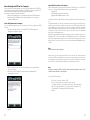
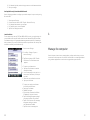
In the SmartSystems console, select a mobile computer and right-click.
From the menu, select Intermec Settings.
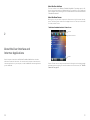
Configure the settings you need to change. As you choose parameters from the tree structure, help for each parameter appears in the upper right pane of Intermec Settings.
When you are done making changes, choose File > Save Settings.
For help using Intermec Settings, click Help > Contents. For information on all of the parameters in Intermec Settings, see the Intermec Settings Command Reference Manual.
Configure Bluetooth Communications
Your mobile computer is Bluetooth™-enabled, which lets you connect to other Bluetooth devices, such as scanners, printers, or audio devices. You need to turn on the
Bluetooth radio before you can discover and connect to other Bluetooth devices. By
default, the radio is turned off. You can configure Bluetooth communications using
Intermec Settings or from the Start menu.
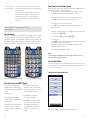
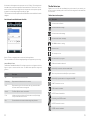
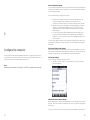
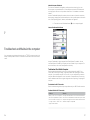
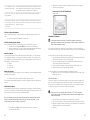
1 Tap Start > Settings > Intermec Settings >
Communications > Bluetooth.
2 Select the Turn on Bluetooth check box.
3 (Optional) If you want your computer to be
visible to other Bluetooth devices, choose
“Discoverable”.
4 Tap OK.
About Network Communications
You can easily add the mobile computer to your wireless or wired data collection network. You can connect your computer using:
•
•
•
•
802.11a/b/g/n radio communications.
Ethernet communications.
Bluetooth communications.
USB and serial communications.
Configure 802.11a/b/g/n (Wi-Fi) Radio Communications
Make sure all components with antennas are at least 30 cm (1 ft) apart when
power is applied. Failure to comply could result in equipment damage.
The mobile computer contains an 802.11 radio to transfer data using wireless communications and to support the TCP/IP network protocols. This section of the manual
assumes that your wireless network is set up, including your access points. By default,
the 802.11 radio is disabled. Use the following procedure to enable the Wi-Fi radio using
Intermec Settings.
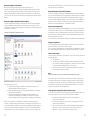
1
2
3
4
5
40
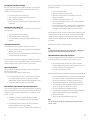
The Bluetooth radio maintains its state through a reboot or cold boot and maintains
virtual COM ports. But, if you clean boot your computer you need to recreate pairings
to devices.
Connect to a Bluetooth Scanner
You can connect the computer to an Intermec Bluetooth scanner, such as the SF51 or SR61.
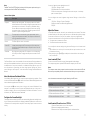
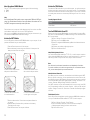
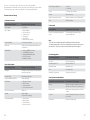
1 Tap Start > Settings > System > Wireless
Scanning.
2 Tap Add Device.
Tap Start > Settings > System > Intermec Settings.
From the Intermec Settings main menu, tap Communications
>802.11 Radio> Radio Enabled.
Select the Radio Enabled check box and tap OK. By default, the computer uses Funk security and enables DHCP.
Use Intermec Settings to configure any other parameters you need to use for communication with your network.
Configure 802.11 security. For help, see “About Wireless Security”
on page 44.
41