1
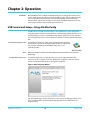
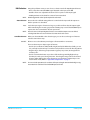
Update Tab Screen
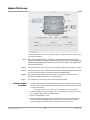
Use this Update screen to view the software version currently installed on the converter
or install new software.
NOTE:
When discussing Mini-Converters, “Firmware” is software that will be stored in the MiniConverter’s non-volatile memory and used when it is powered up. This is something different
than the MiniConfig application software. The version numbers shown in the Update screen
refer only to the firmware.
Installed:
This field shows the version of the firmware currently installed inside the Mini-Converter.
Desired:
This field shows the version of firmware embedded in the MiniConfig application which
you can install into the Mini-Converter by clicking the Update button.
Update:
This button initiates a software update operation loading the “Desired” version of
firmware into the Mini-Converter’s non-volatile memory.
Progress:
This indicator bar shows the progress of software being installed.
Software Update 1. Check the AJA website for new MiniConfig software for your Mini-Converter. If new
software is found, download it and uncompress the file archive (zip). Here is the URL
Procedure
to use when checking:
http://www.aja.com/en/products/mini-converters/mini-config-software
2. Connect the Mini-Converter to a Mac or PC via a USB port on the computer and run
the new MiniConfig software just downloaded.
3. Click on the Update tab screen.
4. Check the Installed version level against the Desired version level. If the Desired is
newer, then click the Update button to download the new firmware to the MiniConverter; progress will be shown via the “Progress” thermometer bar.
AJA ROI Converter v2.1
21
www.aja.com