1
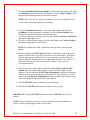
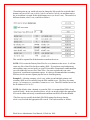
5. Then, click SEND FILE to copy the certificate to the server. Or, if you want to
type in the text of the certificate without downloading a specific file, click in the
text box and enter and paste the certificate information.
6. Click SEND TEXT to implement the text on the server.
7. Ensure that the private key text block is included along with the SSL certificate
text block when using the SEND FILE or SEND TEXT options.
8. When you download the certificate to the server, PSA checks for errors. If an
error is detected, PSA restores the old version of the SSL certificate, and PSA
warns you to update the certificate. At this point, you can try again to enter text or
to download the certificate file.
9. When you are satisfied that the SSL certificate is correctly implemented, click UP
LEVEL to return to the Domain Administration page.
If you are using a certificate that has been signed by an authority other than Thawte or
Verisign then it is likely that this will require the use of a rootchain, or CA, certificate. To
install a rootchain certificate for the domain:
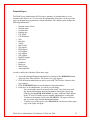
1. Access the domain management function by clicking on the DOMAINS button at
the top of the PSA interface. The Domain List page appears.
2. Click the domain name that you want to work with. The Domain Administration
page appears.
3. If you have established an IP based hosting account, the CERTIFICATE button
will be enabled.
4. Click the CERTIFICATE button. The SSL certificate setup page appears.
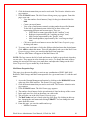
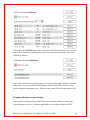
5. The icon next to Use rootchain certificate for this domain appears on this page.
6. If the icon is [ON] then the rootchain certificate will be enabled for this domain.
If the icon is [X] this function will be disabled.
7. To change the status of the rootchain certificate, click the ON/OFF button.
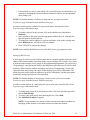
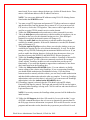
8. To upload your rootchain certificate, first make sure that it has been saved on
your local machine or network. Use the Browse button to search for and select the
appropriate rootchain certificate file.
9. Then click the SEND FILE button. This will upload your rootchain certificate to
the server to assure proper authentication of the certificate authority.
Plesk Server Administrator User Manual, © Plesk Inc. 2001
69