1
6.8.3 PRO Using speech recognition
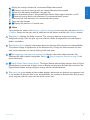
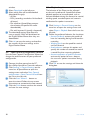
1 Select one or more dictation files from the
work list.
2 Click the Add to speech recognition
button on the toolbar to queue the
selected files for speech recognition in the
recognition and adaptation queue panel.
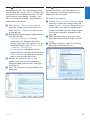
3 Click the Start recognition queue button
in the recognition and adaptation queue
panel to start the speech recognition
process.
When the speech recognition process is
finished, the dictation file is moved to the
Finished dictations folder and the status is set
to Correction pending. A Text document (.rtf )
containing the transcribed text is attached to
the dictation file.
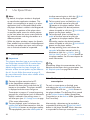
CImportant
• If you wish to use speech recognition, the
name of the user profile in Dragon NaturallySpeaking must be identical to the SpeechExec
author name and the author name used for
recordings on a handheld dictation recorder.
• Speech recognition is not supported for
dictation files with the following recording
formats:
• .wav files with a sampling rate of less than
11kHz.
• .dss files recorded in Long Play or Long
Play mobile format.
User manual
6.8.4 PRO Playback and correction of
transcribed recordings
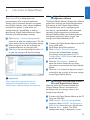
1 Double-click the dictation file in the work
list or select a dictation file and click the
Start transcription button on the toolbar.
The dictation file is opened in the correction
window.
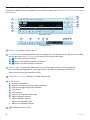
2 Use the buttons on the toolbar of the
correction window or the foot control to
rewind, forward and start playback. See
5.1 Transcription on page 14 for more
information.
Each segment of the sound file is bookmarked
in the text document with the relevant time
position and length. The transcribed text is
simultaneously highlighted during playback,
forwarding and rewinding.
D Note
• If too much editing or correction is made on
the transcribed text or the entire flow of the
document is changed, highlighting may not
work properly.
• If parts of the transcribed text are deleted,
the related sound parts will remain in the
sound file.
• Dictation files with the status Transcription
finished can be opened only for playback.
Editing or correction is not possible.
• For making corrections in the transcribed
document in the correction window, the
installation of Dragon NaturallySpeaking is
not required.
6.9
Receive dictation files by email or
from an FTP server
SpeechExec allows dictation files to be received
via email or downloaded from an FTP server
directly into SpeechExec’s dictation list.
21
E N G L I SH
on Dragon user profiles based on the
corrected speech-recognized documents.
• Activate the option Send files for speech
recognition after DPM download under Settings
> General Settings > DPM/DT Configuration
> Speech recognition to have dictation
files automatically processed with speech
recognition when they are downloaded from
the Pocket Memo recorder.
D Note
If this option is activated, the conversion,
encryption and delivery after download
options are disabled.