1
Installing the Software
The first step is to run the software installer.
NOTE: If you have previously been using an earlier version of the SADiE software on
this computer, it is best to uninstall the old version first. Go to the Start button / Control
Panel / Add/Remove Programs (or Programs / Uninstall a Program) then select the older
SADiE program and uninstall it.
Uninstalling the SADiE software does not alter data, settings, hotkeys or licences.
1. Insert your software CD, or the USB memory stick. You may need to wait a moment
while your computer is dealing with this.
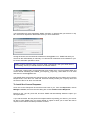
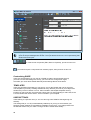
2. If installing from CD a menu will appear. You will be asked to select your platform
(between ‘Native’ and ‘SADiE Hardware Platform’) and then press the ‘Install’ button
If installing from Memory Stick. Navigate to the \Software directory of the USB
memory stick and run ‘SADiE6_installer.exe’ by double clicking on it.
3. Follow the instructions on screen. There will be a few messages with some
configuration choices, but if in doubt, press enter to continue through the installer.
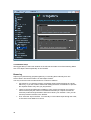
4. Once the installer has finished, you will see a SADiE6 icon on your desktop. Doubleclick on the icon to start the SADiE software.
Running SADiE6
Audio Hardware
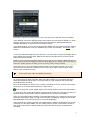
The first time you run SADiE, if you are running without SADiE hardware you will see a
message about the selection of audio hardware. At the time of this first start, SADiE chooses
some hardware automatically, but you can choose from available hardware in SADiE’s
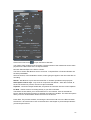
‘Native Drivers’ setup page which can be found in the Setup Window from the ‘View’ menu.
We recommend that you use hardware with an ASIO driver. SADiE is able use WDM drivers
also, but performance is much better with an ASIO driver.
Licences
To run SADiE your software installation must be authorised. The first time you install SADIE
on a PC it will operate in trial mode for 30 days.
If you have the USB Dongle key you should install it now. If not, skip this section and move to
‘Requesting a Licence’.
Installing the Dongle
The CD or USB memory stick that you installed the software from should still be inserted.
Don’t insert the Dongle just yet.
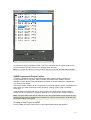
If you are installing from the CD go back to the main menu of the CD wizard, and click
on ‘Install a Dongle’.
If you are installing from a USB memory stick navigate to the root directory of the
stick, and run the program ‘SADiE_Dongle_Installer.exe’ by double-clicking on it.
Once again the software installation is automatic. You may need to press ‘enter’ to move
through the installer. A driver and a key file for your dongle will be installed to your PC.
2