1
User Manual 6.0
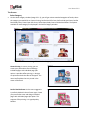
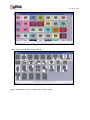
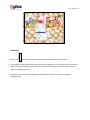
button. There are 18 ready tones available for use.
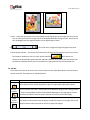
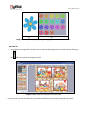
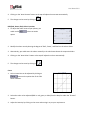
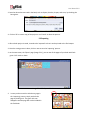
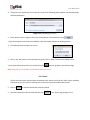
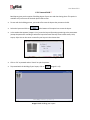
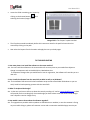
Choose the ready tone you want and double click on it to apply it to the photo border (Image 3.2.3.16)
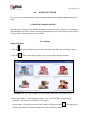
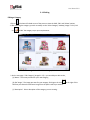
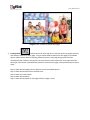
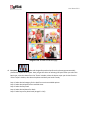
Image 3.2.4.16: Applying a Ready Tone to the Border the Original Border; with the Ready Tones.
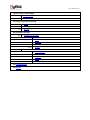
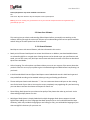
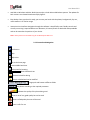
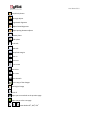
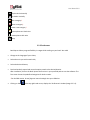
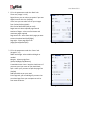
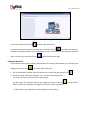
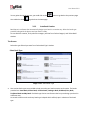
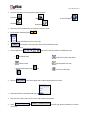
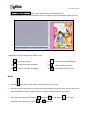
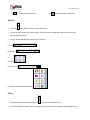
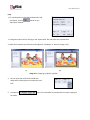
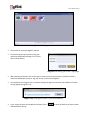
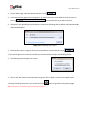
! Additional icon on the ‘Design Book’ Border screen:
(i)
– to reset the changes.
(iv)
– to rotate the border 270 degrees.
(ii)
– to rotate the border 90 degrees.
(v)
– to flip the border vertically.
(iii)
– to rotate the border 180 degrees.
(vi)
– to flip the border horizontally.
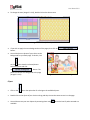
Mask
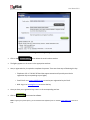
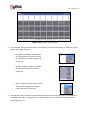
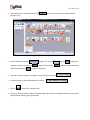
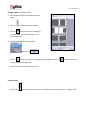
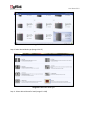
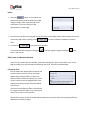
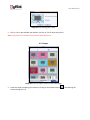
1. Click the
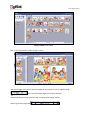
tab on the left-hand panel to select the mask of your choice.
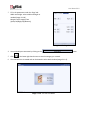
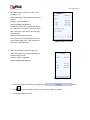
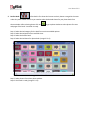
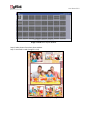
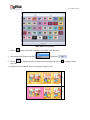
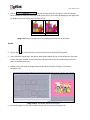
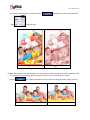
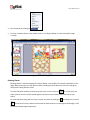
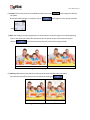
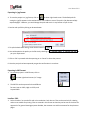
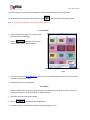
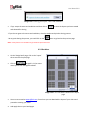
2. Select the photo to which you want to apply the mask and double click on the mask or drag and drop the
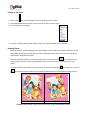
mask on the photo to apply it (Image3.2.4.17) you could even access the previous 15 paths.
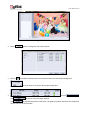
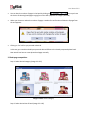
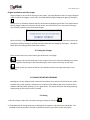
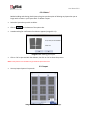
3. You could rotate the mask by 90 degrees
horizontally and vertically by using the
, 180 degrees
and
, or 270 degrees
respectively.
and can flip it