1
Getting Started with Ableton Live Lite 8
3 - Running the Proteus VX Sound Module from Ableton Live
NOTE
These instructions also
apply to Proteus X or
Emulator X.
3 - Running the Proteus VX Sound Module from Ableton Live
(Windows only)
These instructions explain how to run Proteus VX from within Live Lite 8. Proteus
VX adds a professional-quality sample player and over 1000 new sounds and
integrates perfectly with Ableton Live Lite 8. In this tutorial, you’ll learn how to use
a MIDI keyboard and the pre-recorded MIDI loops that come with Live Lite 8 to
play Proteus VX.
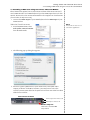
• In preparation for this tutorial, select the third Live lesson - Improvising With
Loops. If you haven’t already done so, go through the Lesson at least once
until you are familiar with the concept of loops in Ableton Live.
NOTE
Please refer to the Proteus
VX manual for the complete
set of instructions (located
under the Help menu item).
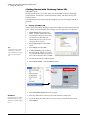
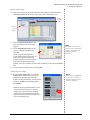
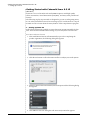
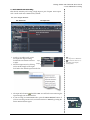
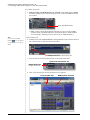
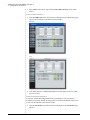
1. Load the Live Set associated with the A Tour of Live lesson by clicking the
button shown below. The Tour of Live Demo appears.
Proteus VX can also run as a
stand-alone application.
Click Here
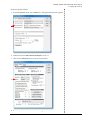
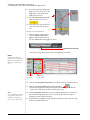
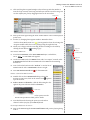
2. Press the Session View button.
shown below.
The window should look like the one
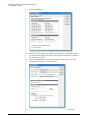
3. Drag & Drop Proteus VX here . . .
3. From the Plug-in Device Browser,
Proteus VX from the E-MU folder.
2. Session View Button
select
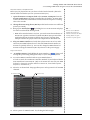
4. Click and drag the Proteus VX VST icon
over the Clip/Device Drop Area as shown
above. Wait a few seconds.
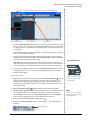
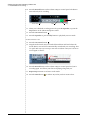
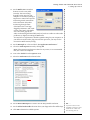
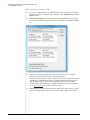
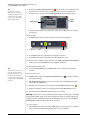
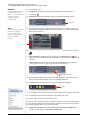
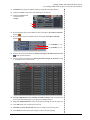
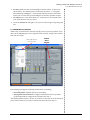
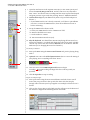
5. The Proteus VX editor window appears.
(See the image on the following page.)
30
E-MU Production Tools Software Bundle