1
4 SAMMS Standard Software
4.3.2
Download to SAMMS
Part II: Custom Software
4.
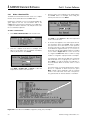
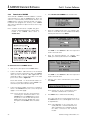
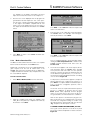
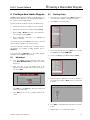
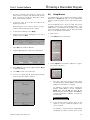
Select Download to SAMMS from the main menu.
5.
Enter the compiled circuit name. For example, enter
PB32 for circuit PB32 from the standard circuit library.
Omit any file extension. Press Enter.
The Download to SAMMS command establishes communication between a PC and the SAMMS device, allows the
selection of a download file, and downloads this file to the
SAMMS device using the download module. The downloaded file then programs the memory of the SAMMS
device with the desired motor protection and control configuration codes.
Note: A ladder circuit must be compiled and generated as a download file before it can be downloaded to the SAMMS device. Refer to
Section 4.3.1.
Press ESC or select Cancel to abort the request and
return to the main menu.
6.
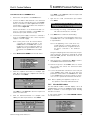
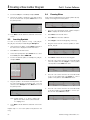
Enter the download filename. For example, enter
PUMP_#25. Omit any file extension. Press Enter.
To download a file to a SAMMS device:
1.
Remove the control power to the SAMMS device.
2.
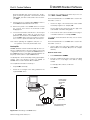
Connect the ribbon cable attached to the download
module to the rear communications port of the SAMMS
device; and use the RS-232 cable supplied with the
download module to connect the module to the serial
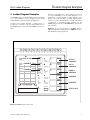
port of the PC. Refer to Figure 4.8.
Press ESC or select Cancel to abort the request and
return to the main menu.
7.
Ensure that terminal 1 on the download module connector is connected to terminal 1 of the SAMMS communications port. (Red orientation line up).
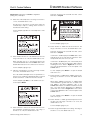
3.
Connect the power supply connections to terminals 5
and 6 of the SAMMS device; then connect the power
supply to a 120 VAC supply.
Note: Control power must be removed before
connecting the download module to the
SAMMS device. The SAMMS device senses
the presence of the module when power is
applied. Only the green READY LED on the
front panel of the SAMMS device should be
lit.
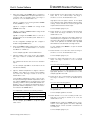
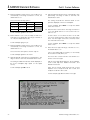
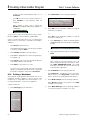
Type the PC’s serial communications port number.
Press Enter.
Note: Entering the wrong communications port
will create a download error command.
8.
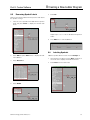
Press Enter twice to initiate the downloading.
The code for this file is now transferred from the PC to
the SAMMS device. The code will appear on the screen
in sequential lines.
Note: Code appearing on the screen all at once
usually indicates a mismatch between the
device specified in the configuration file and
the device connected to the download
module.
26
Siemens Energy & Automation, Inc.