1
PheeNet WMS-208
Quick Installation Guide
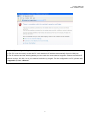
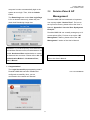
Ø While restarting WMS-208, a “Restarting now.
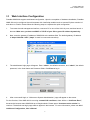
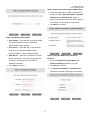
Step 5. Add Local User Account (Optional)
Ø A new user can be added to the Local User
Please wait for a moment.” message will
database. To add a user here, enter the
appear on the screen.
Username (e.g. test), Password (e.g. test),
MAC Address (optional, to specify the valid
MAC address of this user) and assign an
Applied Group to this particular user (or use
the default None).
Ø More users can be added by clicking the Add
Now button.
Please do NOT interrupt PheeNet WMS-208
Ø Click Next to continue.
restart process until the Configuration Wizard
pop-up window has disappeared – which indicates
the restart process has been completed.
Now, the basic configuration is completed.
If all the steps are done properly, PheeNet
WMS-208 has been connected to the managed
network.
2.4
User Login
After completing the configuration wizard, the user
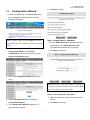
Step 6. Save and Restart PheeNet WMS-208
account generated in Step 5 can be used to login to
Ø Click Restart to save current settings and
the system to verify whether the configuration is
restart PheeNet WMS-208. The Setup Wizard
done properly.
is now complete.
First, connect a client device (e.g. laptop, PC) to
one of the LAN1~LAN8 Ports. If eliminating the
need for client IP configuration is desired, the
administrator can enable the “IP PnP” function to
support both static and dynamic IP. Otherwise, the
client device must be set to use DHCP in TCP/IP to
obtain an IP address automatically.
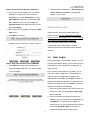
1. Open an Internet browser on a client device and
access any URL, the default User Login Page
will be displayed.
2. Enter a username and password previously
created in the Local User account database (e.g.
“test@local” for Username and “test” for
Password) or from an On-demand User account.
Check the Remember Me box to store the
username and password on the current
11