1
Basic Function
UI Interface Introduction and Operation Instruction
3.1 Digital Video Intercom Function
It is able to receive calls from outdoor unit, fence outdoor unit,
management unit or other networking terminal unit. Besides it can call and
activate two way video intercoms with all networking terminal unit and
management unit.
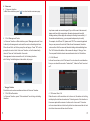
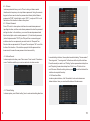
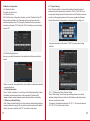
At first boot, the interface for inputting D code will appear:
3.2 Remote Unlocking Function
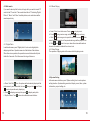
Users are able to release the electric lock of the outdoor unit and fence
unit by pressing UNLOCK button.
3.3 Monitoring Function
Users can monitor outdoor environment through the outdoor unit or fence
unit.
3.4 Owner Message
Before leaving home, users can leave messages to their families on the
terminal devices and receive visitors' messages on the outdoor unit as
well.
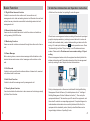
When there is no management center, according to the network topological
graph (in simple presentation, just simply connect stair unit to indoor unit
directly with a network cable), conduct address setting on indoor unit after
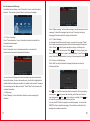
wiring. In D code input interface, press
to enter operation menu. Press
“System setting” and then “Project setting” to set IP address and room
number. Please refer to IP address and room number setting of Project
setting.
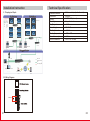
When a management center exists, the equipment can directly obtain the
address information and IP information already set from the management
center by entering D code. Simple structure is shown below:
3.5 Call Records
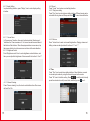
It is able to auto record the information and time of missed calls, received
calls, dialed calls for reference.
3.6 Info Check Function
It is able to check the messages sent by management unit.
3.7 Security Alarm Function
It can check whether the detectors in alarm zones are functioning normally
by Status Check function.
3
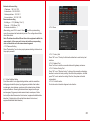
Firstly, add equipments on the server installed with Intelligent Building
Management Center Software. (For details please refer to "Intelligent
Building Management Center Software Instruction"). Then set up the
equipment address, IP information, export D code of the equipment, and
then enter D code into corresponding equipment. Prompts will appear to
indicate address information is successfully obtained. After that, the
equipment will automatically reboot, directly enter Main Menu and no
longer display interface of inputting D code.
4