1
Direct Data Entry (DDE) User Manual
12. Invoice Entry – CHOICES (cont’d.)
a) Enter Invoice Details (cont’d.)
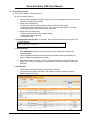
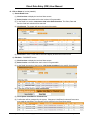
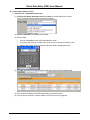
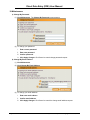
(13)Add Service(s):
i.
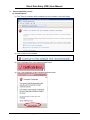
After consumer(s), service code(s), provider(s), date(s) and comments are
selected/entered; click Add Service(s).
ii.
This will populate the Detail Lines section and a confirmation will be generated by the
system: Detail record(s) added successfully.
iii. Once Add Service(s) is clicked, an invoice draft is automatically saved in the system and
added to the “Invoices in Progress” list, and remains in “Invoices in Progress” status until
submitted.
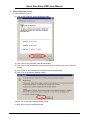
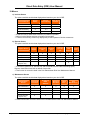
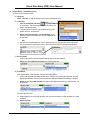
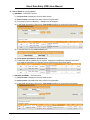
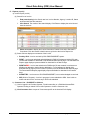
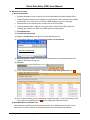
(14)Detail Lines:
i.
Invoice Detail Lines section is group and sorted by consumer.
ii.
For performance purposes, 200 rows is the maximum number of detail lines that will be
displayed during invoice entry.
Allena J. Hyite - 759417104
Duwitt, Mary - 24434
Allena J. Hyite 759417104
Duwitt, Mary - 24434
Allena J. Hyite 759417104
Duwitt, Mary - 24434
Allena J. Hyite 759417104
Duwitt, Mary - 24434
Allena J. Hyite 759417104
Duwitt, Mary - 24434
Allena J. Hyite 759417104
Duwitt, Mary - 24434
Allena J. Hyite 759417104
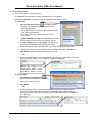
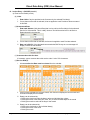
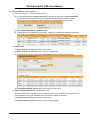
iii. Click View All Rows to see all Detail Lines for the invoice. This will take you to another
screen displaying all details for the invoice.
iv. Click Edit this Invoice to return to invoice entry screen.
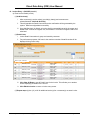
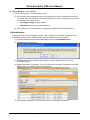
(15)Repeat steps (6) thru (13) to bill for additional service(s) for a consumer(s) on same invoice.
Created by The Ohio Department of Aging, 02/26/2010, Rev. 8
Page 15 of 33