1
Safe Touch
User Manual
WARNINGS
Comelit Group S.p.A. declines any responsibility for improper use of the
EN apparatus, for any alterations made by others for any reason, and for the
use of non-original accessories or materials.
Caution! In order to reduce the risk of faults and electric shocks:
• Do not open the apparatus or carry out any repairs yourself. If
necessary, request the services of qualified personnel.
• Do not insert objects or pour liquids into the device.
• Clean using a damp cloth. Do not use alcohol or other aggressive
products.
2
SAFETOUCH
GENERAL NOTE
This guide provides information on how to carry out basic SafeTouch EN
functions. You can find the full manual in digital format (PDF) on our
official website www.comelitgroup.com, by typing the word “Safetouch”
into the search engine.
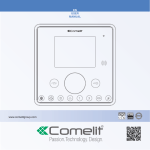
3.5" touch screen display
The display shows the icons corresponding to the available menus, which
may vary depending on the system configuration. To navigate the menus,
simply use your finger to touch the icon corresponding to the desired
function.
RFID sensitive zone
The
icon can be used to return to the main menu immediately.
The
icon can be used to return to the previous screen.
Important: If the screen is not touched for one minute, it switches off
and enters energy saving mode.
Screen: code entry
To carry out as many procedures as possible, you must log in with a user
code or an RFID key.
When the code is requested, the following screen will appear; once the 6
digits have been entered press
to confirm, or
to cancel.
Important: When the product leaves the factory, only User 1 is available
and enabled with the code 111111.
3
SAFETOUCH
LED signals
EN
Safetouch is equipped with a series of RGB LEDs at the bottom which
change colour depending on the situation they are signalling.
The LEDs may turn the following colours:
Colour
Yellow
Red
Description
Steadily lit
Battery fault (disconnected, faulty
or voltage under approx. 11.8 V),
general fault, no mains power supply
Flashing
Alarm memory
Steadily lit
Alarm in progress (H24 alarm, area
in alarm)
Main screen
To access the main screen, simply touch the screen if it is off, or use the
relevant icons if you are already accessing the menus.
The main screen is structured as follows:
3
4
1
5
2
1. Activation/deactivation buttons
2. System status
3. Settings menu
4. Timed activations
5. Quick commands (see previous figure)
6. or Date/Time (as in figure on page 33, if quick commands have not
been assigned to the function buttons)
Important: Buttons (1) and (5) can be customised; contact authorised
users or your installer to do so.
4
SAFETOUCH
System status
The 'System status' icon changes colour depending on the status of the system.
The colour indicates:
Total activation across all areas
Partial - or customised - activation (not all areas associated
with the mintouch are totally activated)
Areas deactivated
If the icon is flashing, faults have occurred; to view the details simply
touch the icon.
Viewing images from zones in alarm
If a camera is associated with the zones, when this zone enters alarm
mode the system captures images (between 1 and 4 depending on the
configuration).
In this case an additional icon will appear on the alarm screen to indicate
the presence of images.
1
1. Icon corresponding to the images associated with the zone
This icon has 3 possible variants:
Indicates the presence of images relating to the zone.
Press this icon to view the images.
The Safetouch is searching for images corresponding
to the zone.
The Safetouch has not found any images corresponding
to the zone.
These icons may also be listed in the 'Events log' menu.
5
EN
SAFETOUCH
Using the RFID key
EN
IT
Passing the proximity key over the sensitive zone causes:
1. Total activation/deactivation if the Safetouch main screen is
displayed, or if the screen is off
2. It replaces code entry, if done while the code entry screen
is displayed.
6
SAFETOUCH
EN
7
1st edition 06/2013 code 2G40000872
www.comelitgroup.it