1
TEW-733GR
TRENDnet User’s Guide
Advanced Router Setup
Access your router management page
Note: Your router management page http://192.168.10.1 is accessed through the use of
your Internet web browser (e.g. Internet Explorer, Firefox, Chrome, Safari, Opera) and
will be referenced frequently in this User’s Guide.
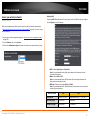
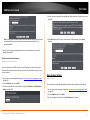
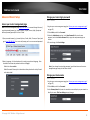
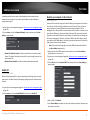
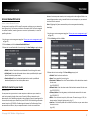
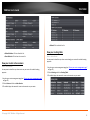
1. Open your web browser (e.g. Internet Explorer, Firefox, Safari, Chrome, or Opera) and
go to http://192.168.10.1. Your router will prompt you for a user name and password.
2. Next to Language, click the drop-down list to select your preferred language. Enter
the default user name and password and then click Login.
Default User Name: admin
Default Password: Please refer to the wireless sticker placed on the side of the unit
or the device label
Change your router login password
Main > Password
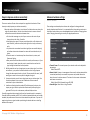
1. Log into your router management page (see “Access your router management page”
on page 22).
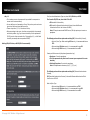
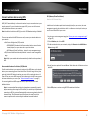
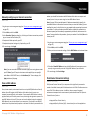
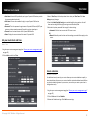
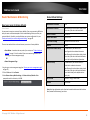
2. Click on Main, and click on Password.
3. Under the Administrator section, in the New Password field, enter the new
password, and in the Confirm Password field, retype the new password again to
confirm.
4. To save changes, click Save Settings.
Note: If you change the router login password, you will need to access the router
management page using the User Name “admin”.
Change your device name
Main > Password
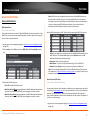
1. Log into your router management page (see “Access your router management page”
on page 22).
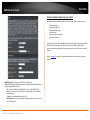
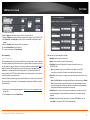
2. Click on Main, and click on Password.
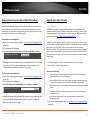
3. In the Gateway Name field, enter the new device name to display on your network to
identify the router. Click Save Settings to apply changes.
© Copyright 2012 TRENDnet. All Rights Reserved.
22