1
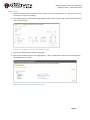
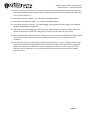
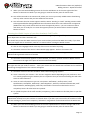
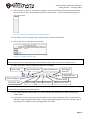
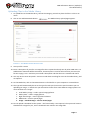
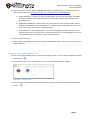
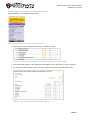
CMS Information Sheet 4.3 (16/02/15) Editing Content ‐ Inserting Images 10. You can put different classes in the class box to control how your image is positioned in your page: If you want the image to be displayed on the left of the page with the text wrapping round it (with a border), type “float‐left” in the class box. If you want your image to be on the left on a new line, type “float‐none” in the class box. If you want your image to be centred, type “centre” in the class box. Otherwise, leave the class box blank and the image will be displayed in the default location (on the right of the page with the text wrapping round it). Note that any changes to the class of the image will not appear to have any effect in the Editor window, but you will be able to see the results of the changes when you preview the page. Page 3