1
Configure Boot Devices
This option supports FC_AL: (public loop and private loop) and fabric point-to-point. When operating in
loop (FC_AL) topology, the system automatically determines whether you are configured for a public or
private loop. The BIOS looks for a fabric loop (FL_Port) first. If a fabric loop is not detected, the BIOS
looks for a private loop. For the "Configure Boot Devices" option, the 64 boot entries will be zero by
default (<d> key).
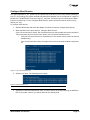
To configure boot devices:
1. Start the BIOS utility and select the adapter for which you want to configure boot devices.
2. When the Main menu opens select 1, Configure Boot Devices.
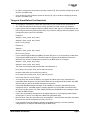
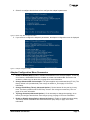
A list of 8 boot devices is shown. We recommend that only the bootable devices be configured.
The primary boot device is the first entry shown, and it is the first bootable device.
•
If the first boot entry fails due to a hardware error, the system can boot from the second
bootable entry.
•
If the second boot device fails, the system will boot from the third bootable entry and so
on.
Figure 21: List of Saved Boot Devices
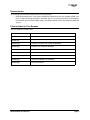
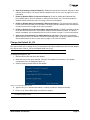
3. Select a boot entry. The following screen opens:
Figure 22: Device Selection List
Note: We recommend that you select the drive with the lowest AL_PA as the boot device.
4. Select 00 to clear the selected boot entry, or select a device to configure booting via WWPN or
DID. If you select a device, you will be asked for the starting LUN.
x86 BootBIOS User Manual
Page 18