1
PLASMATRONICS SPSD-ENET
NBNS requests, the SPS solar charge controller will reply to web requests to the configured Hostname.
This is the common configuration for PCs and internal networks. If your Network or PC has NetBios
turned off, you can contact the SPS solar charge controller by using its IP address.
You can also assign a different host name to the IP address of the SPS solar charge controller by using
a DNS server, or by making an entry in the Hosts file on your PC.
The default IP address used by the SPS solar charge controller is not visible on the internet. It is not a
routable IP address. In general, SPS solar charge controllers should not be directly connected to the
internet. You should use a direct connection or a private network or a virtual private network to
monitor and configure your SPS solar charge controller.
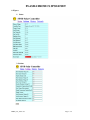
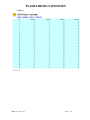
4. Network configuration management
You must login to change values on the Network page. You will be presented with a Login dialog
when you try to change values on the Settings or Network pages. Values on the network pages will
change when you push the "Send" button. If you change the IP Address, this will immediately
disconnect you from the ENET board. You can reconnect using the new IP address.
After values have been sent to the Enet board, previous values may be restored by power-cycling the
Enet board, or by using the Factory Reset jumper, or by pushing the Reload, Default, or BOOT
buttons.
Press the Save button after the Send button to permanently set the new values. After the new values
have been Saved, power-cycling or the Reload and BOOT buttons restore the Saved values. Factory
Reset jumper and the Default button restore the factory default values.
If you use the Site Name, (the NetBios name), to connect to the Enet board, the Site Name with its
Ethernet address will be cached on your PC for some time. If you change the Site Name, you can use
the new name immediately, but the old name will also point to the same IP Address.
If you plan to change the Site Name and the IP Address, change the Site Name and the IP Address at
the same time, then press "Send", so that the new Site Name points to the new IP Address
immediately. Re-connect using the new Site Name, then press Save (you will need to login again) to
make the new values the saved values.
IP address, Net Mask, and Gateway values must be entered as dotted decimal values. Changed
password must be entered twice. If the password change is accepted, you will be presented with a login
dialog when you press the "Save" button.
6. Activity Light
Normal configuration is Activity and Connection Status.
If the Connection Status is Off, the Activity light goes to a slow blink.
If the Reset jumper is connected, the Activity light is On.
7. Board Jumpers
Jumper A is the unlock jumper. Remove Jumper A to lock the network settings, SPS controller
settings, or both. The lock options may be set on the network page while the unlock jumper is
connected. Status of Jumper A may be seen on the Network page.
Jumper B is the Factory Reset jumper. While Jumper B is in place, an ENET board Factory Reset
occurs once per second. There is no effect on SPS controller settings. Hold the Reset jumper until the
Activity light comes on (up to 1 second may be required). Status may be seen on the Network page.
ENET_User_Guide-v2.1
Page 3 of 6