1
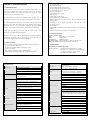
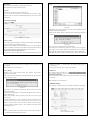
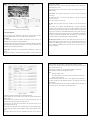
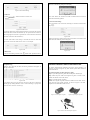
4.7.1 Record Settings
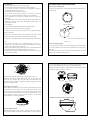
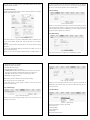
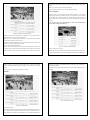
4.7.2 Replay
Figure 4-38 Replay
Video Search: set the start and end time, and then click the search button. All
Figure 4-37 Record Settings
Recording video type: Select the type of videos to record, major stream or
videos recorded during this period of time will display in the list.
minor stream.
TF Card when full: Overwrite or Stop. Overwrite means newly recorded
videos automatically overwrite the previous videos when the TF Card is full;
Stop means recording stops when the TF Card is full.
Recording mode: Event triggered, Always, Close. If Event Triggered is
selected, the event triggered can be Network disconnection or alarm. If
Network disconnection is selected, recordings are automatically triggered
during the period of network breaking; if Alarm is selected, also with TF Card
selected under alarm out contact in the alarm interface, recording is
automatically triggered when alarm occurs.
You can view the total size, used space and state of TF Card and also format it.
To remove TF Card when it is being used, please click “Reject”.
Figure 4-39 Searching Videos
45
46
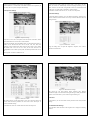
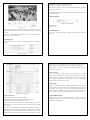
Replay: to replay a video, double click a file in the list with the mouse or select
a file and then press the “Play” button
. During playing, click
or
to pause or stop playing.
Click the button
on the right of video window, the right window will disappear,
show as below:
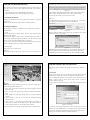
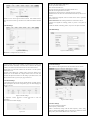
Figure 4-41 Downloading Videos
Save to: Set the path to save the downloaded files. If resetting required, click
the button “Browse”.
AVI/H.264 drop-down list box: select the downloaded file attribute.
In the download list, file total size, status and process will display.
Click the button “Start”, and then the files in the list will be downloaded in order.
The process shows 100% after downloading is finished.
Figure 4-40
Click the button “Open” to enter download content.
Click the button , the interface will return to the page as Figure 4-35.
4.8 Account Settings
Download: You can download the videos stored in the TF Card to your PC.
The default super user is admin (password: admin). Super user can add, delete
common user, and change the password of common users. Super user cannot
Select the file from the video list (also you can select multiple files
change his password. A maximum of 8 accounts are supported.
simultaneously using the key “Ctrl” or “Shift”), and then click the button
Detailed instruction about how to add and delete user are addressed below.
“Download” to enter the downloading interface.
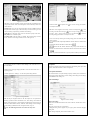
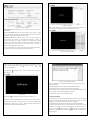
Click the Account option tab in the Settings interface, the following account
information will display. The “Num” item shows the current user number. In
“Property” column,
“Operation” column,
stands for super user;
stands for common user. In
means to delete;
means to edit user information.
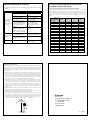
See figure below:
47
48