1
Section 10. Utilities
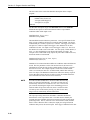
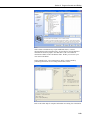
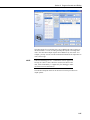
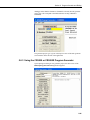
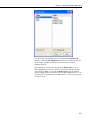
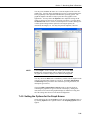
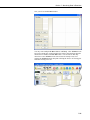
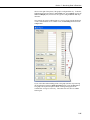
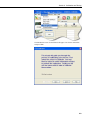
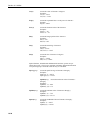
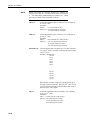
Note that the cursor in the INPUT FILE(S) screen must be in valid paste area
(Copy or Select). If the cursor is in the File name box or in Start/Stop
condition, you will get the error message “Cannot Paste There”.
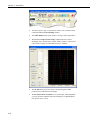
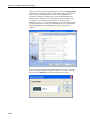
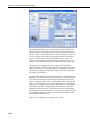
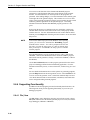
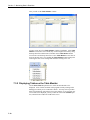
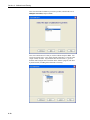
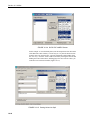
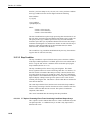
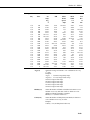
The Paste operation copied the numbers of each of the fields into the Select
box. Notice also that it pasted the Array ID into the copy condition: 1[60] tells
Split that in order to copy a line of data, the first value in that line must be 60.
Split uses the Array ID to discriminate between the hourly and daily data.
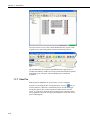
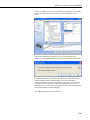
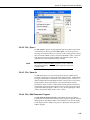
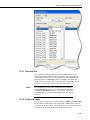
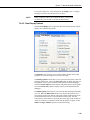
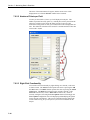
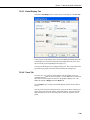
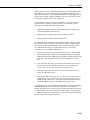
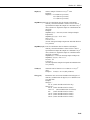
Now specify the Output File name. (Without one specified, Split will run and
display results but no output file will be created.) Click the OUTPUT FILE
tab. Type in “hourly” for the name of the output file. By default, Split will use
the file extension “PRN”, creating the output file: hourly.prn. Depending upon
the option chosen in the "If File Exists then" list box, an existing PRN file may
be overwritten, appended to, or saved under a new name.
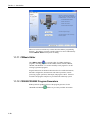
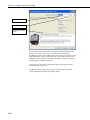
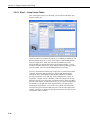
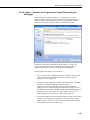
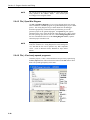
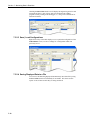
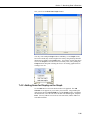
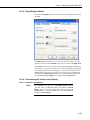
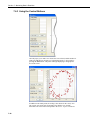
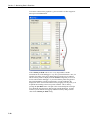
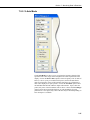
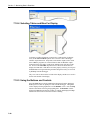
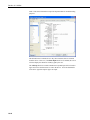
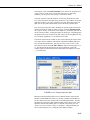
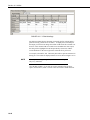
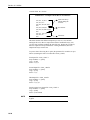
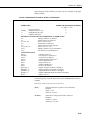
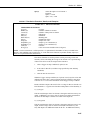
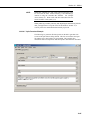
The Labels option from the toolbar can also assist in labeling the output values.
Once again, choose LABELS | USE FINAL STORAGE LABELS and select
array 60 and all the field names. This time move the cursor to Line 1 of the
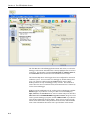
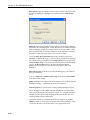
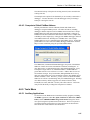
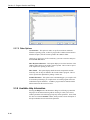
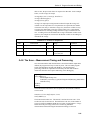
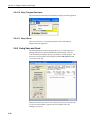
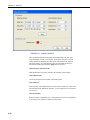
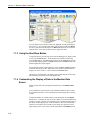
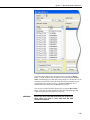
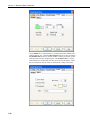
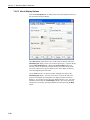
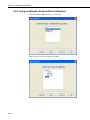
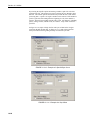
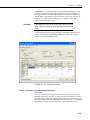
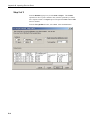
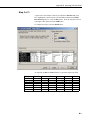
first column of labels on the OUTPUT FILE tab and press Paste (Figure 10.36). The labels from the final storage file will be pasted into each of the
columns. Split will automatically break a label name into multiple rows at the
"_" in a label name.
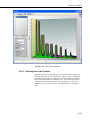
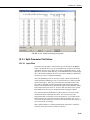
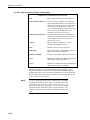
FIGURE 10.3-6. Pasting Labels Into Split
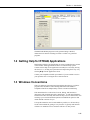
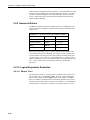
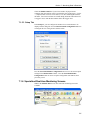
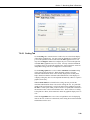
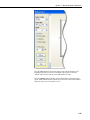
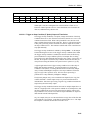
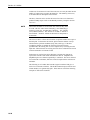
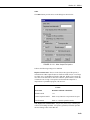
Maximum column heading width is one less than the number entered in the
Default Column Width field. However, entering a number in the Width row
for the column will set the column width for an individual column. Any FSL
labels that are too long for Split column headings will be shown in red. They
should be edited before running Split. To edit one of the labels, press the
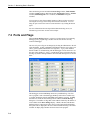
<Enter> key or use a mouse to copy, cut, and paste. A Report Heading can
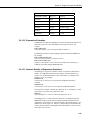
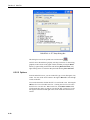
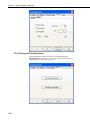
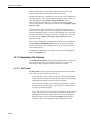
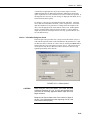
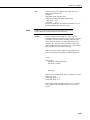
also be entered (Figure 10.3-7) using the same editing technique.
10-17