1
Is it Time to Replace Your Laptop’s Battery?
— by Phil Davis
I
[1]
f you are like me, you rarely think about
your laptop’s battery. Normally, it just
works. In fact, I challenge you to tell me
the last time you gave some attention to this
vital component of your laptop.
Several weeks ago I had to face this question and accept the fact that batteries are not
infallible and that they usually have a shorter
life span than a laptop.
How Do You Know If You Have A Problem?
One way is if your trackpad stops accepting taps.
When this happens it’s usually a sign that the
battery, located below the trackpad, has started
swelling. This is bad and potentially dangerous.
So if this happens you need to unplug the computer and trudge to your favorite repair shop (or
think about replacing it yourself). Another sign
is if you notice that your battery won’t hold a
charge for long. Since this happens gradually
you may not notice the problem immediately.
It just insidiously creeps up.
The second one is the problem that got my
attention. I was using my 13” MacBook Pro untethered from it’s AC umbilical cord and I happened to notice the state of charge indicator
in the menu bar—it was dropping, almost in
real time. I had only been using the computer
for a few minutes and the charge had already
dropped to 60%. A few minutes later it was below 50%! I mumbled a few choice words and
started to watch the meter. While I watched
— 49%, 46%, 42% — and dropping fast.
Wow — maybe I have a battery problem.
Thank you Captain Obvious.
To verify the problem I turned to a program
appropriately called Battery Health. Battery Health is a free app available on the Mac
App Store and should be a “must install” on all
laptops. This little gem sits in your menu and
gives you a wealth of information about your
battery.
For example: I learned that my battery which,
when new, was rated at 54 Wh, now had a capacity 36 Wh, 68% of the original. Battery Health
also gave a warning to “check battery” which
was a bit redundant, but reinforced my suspicions. I learned that the battery was now 5.7
years old and nearing retirement age.
Being reluctant to bite the bullet (or in this
case buy the battery), I decided to try recalibrating the battery. After draining and recharging it I cranked my computer up while watching the state-of-charge meter. Things started
off great with the charge at 100% (of course this
was only 68% of the original capacity). Looking
good. I kept Battery Health running while doing productive work (surfing the web) on my
desktop Mac Mini. One hour later — down to
51%. Yikes! Two hours later — 15%. Since recalibration was useless I had to decide whether to
get a new battery or a new computer. Since I
had recently put a new SSD in this beast I wanted to keep it running as long as possible so a
new battery was the obvious choice. Also, this
choice was a lot cheaper.
Finding a Battery
My first step was to use the model number
of my computer to determine which battery I
needed. In my case I needed an A1331 which
also fits several other older 13” MacBook Pros.
Some resources that you can use to help you
find your model include Apple Support, iFixit,
and the free MacTracker app.
If I wanted to take my computer to an
Apple store (or mail it to Apple) they would replace my battery for $129. But they would not
sell me a battery so that I could do the replacement myself. I needed to buy a battery from
a third-party vendor. There are “OEM” batteries on Amazon and eBay, but when I read the
fine print, I found that most of these batteries
are OEM-equivalent, and not from Apple. And
most of them, while about half the OEM price,
get mixed reviews.
After checking iFixit to confirm that this
was do-it-yourself territory and easy, I was off
to the web to search for a battery with a good
price and good reviews.
The Outcome
I first ordered a 65 Wh high performance battery from Other World Computing for $99. I’ve
had good success with OWC products in the
past and I liked the higher capacity battery
which should give more running time.
The battery from OWC included two small
special-purpose screwdrivers that I used to
remove the screws from the back of the computer and the screws holding the battery in
place. I then disconnected the battery using
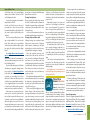
a gadget called a spudger [2]. I slid the battery
in … or rather tried to slide the battery in. No
go! The battery has three small indentations
on one side that lets it slide under the screw
holes for the case. Despite OWC’s compatibility
claims, the indentations on their battery were
in the wrong place. Bummer.
So, returning the OWC battery, I continued
my search and found a battery on Amazon from
a company called Key Power. This battery got
good reviews, was also 65 Wh, had an 18-month
warranty, and cost $64. And, according to the
picture on the website, the indents were in the
right place. Two days later the new battery arrived and, after going through the now familiar
replacement drill, cranked my computer up. Success. The whole installation took less than five
minutes. The hardest part was keeping track of
the tiny screws. The new 65 Wh battery should
not only give better performance, but should
last the rest of My MacBook Pro’s life.
The instructions from Key Power say to
drain the new battery to about 7% by run-
ning the computer without AC power, then
recharging it completely. Then repeat this
discharge/charge cycle a couple more times.
Manufacturers recommend doing this periodically to get the best performance out of
your battery, so battery recalibration will now
go on my maintenance reminder list.
I’m now a happy camper. And so is my
computer. a
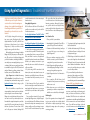
Specs After Installing New Battery—
1. Sometimes editors slash copy, other times they use InDesign’s magic to condense fonts, tighten spacing between letters, tighten line spacing, etc. as in this article. It’s like using a trusty ol’ shoehorn to make it all fit!
August 2015 | MUGSHOT Newsletter
2. If you don’t have a “spudger” use your fingernail, or a piece of thin stiff plastic. Don’t use anything metallic to avoid shorting out the battery.
|
2