1
How to Operate
2
3
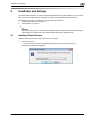
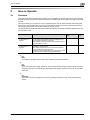
Start the bizhub Remote Panel client software.
–
Open the Start menu, and select [All Programs] - [KONICA MINOLTA] - [Remote Panel] - [Remote
Panel Client].
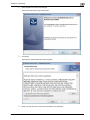
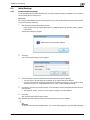
– When you start the bizhub Remote Panel client software for the first time after installing it, the communication setting screen appears following the confirmation screen. Before continuing this procedure, confirm the communication setting. For details, refer to "Communication settings" on
page 2-5.
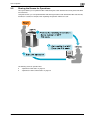
The bizhub Remote Panel client software starts, and the device selection screen appears.
3
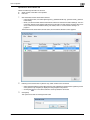
Referring to the serial number in [Device List], select an MFP to be connected.
–
–
4
Select the desired MFP from the MFPs listed for which [Waiting] is displayed in the [Status] column
of the [Device List] and [CSRC] is displayed in the [Request From] column.
Clicking the
icon in the device selection screen updates the device list.
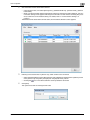
Click [Start].
This opens the screen for entering the PIN code.
bizhub Remote Panel
3-10