1
20 egap - 10 nos eL
However, go on with me: from the File menu, choose the command: New library part / Object.
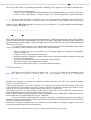
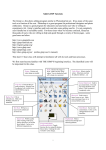
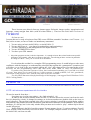
This shows up the main window that helps you to manage a GDL object; in the image below we can catch
a glimpse of his main parts:
her you can se by a simple
redn ot hp e t o gniward 2
preview of your object
let you to man ge objects
fragments, to dif er ntiate
his2dveworpat
her you can s b tw
dna stne opm c ,sret mar p
descriptors of your object
those ag-wind let you
man ge ( d tes ) 2d an 3d
tex scrip
tide yl ac hp rg n u o
tcejbo ru y fo strap d3 na d2
her you can d (an edit) al kind of par met s,
comp ne ts and escripto s f your bject
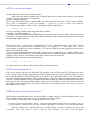
From the Script window tag-menus we can now edit:
Master Script:
2D Script:
3D Script:
Comments:
It's a text-style window, shared between 2d and 3d scripts. We don't need to
use it now, but soon we'll be back on it.
Here is the description of the "flat" geometry... another way to show a 2d symbol
into a plan view. Here GDL must be used! Of course, it's less easy, but much
more powerful than the "graphical" way. This window is used, usually, instead
of the previous; if both are used is this one that has the prevalence.
Is a description of solid geometry... here we need it to write many interesting
and mysterious things using the fascinating instructions of the GDL!!
Less frequently used, unfortunately!! Short text with comments or explanations
of the object here placed will be showed into the preview area.
Hint: turn on ballon help and move your mouse over this window... some brief notes will be showed.
01.02 A little bit of theory.