1
Note: If you have concerns as to whether the prerequisites are met or you encounter problems
after installation, contact your iSynergy administrator or iDatix Support.
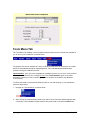
3. Click the Install button, to launch the download and installation processes.
4. Respond affirmatively to all prompts presented during the download and installation process.
Note: Should download/installation exception conditions be reported preventing the full
installation process from succeeding, make a note of the problem and/or print a screen image
of the exception for your iSynergy administrator or iDatix Support.
You might also try restarting your workstation and repeating this installation procedure.
5. At the end of a successful product installation, a shortcut icon will be placed on your desktop
for you to conveniently start and use the product. Likewise, iSynergy may also provide a
built-in means for launching and using the product you just installed.
Note: Remember that now you have installed the complementary product, you normally will
not need to use this Tools menu selection again. The Tools Menu Tab is just for doing
installations. It is not the way to use the product after installation.
iSynergy 3.11 Advanced User Manual
Page 246 of 257