1
 Activating (Publishing) a Simple Survey
Testing the Survey
Before activating your survey, test its functionality and appearance.
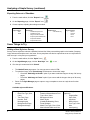
1. Open your survey and click “Test Survey”.
•
A page containing a URL opens. Click this
URL to preview your survey.
•
You may also share this URL with other
internal users (e.g. for proofreading.)
http://demo.checkbox.com/Samples/Survey.aspx?s=522example
2. Make any necessary changes to prepare the survey for activation.
Activating the Survey
Activating the survey will make your survey link accessible to your respondents.
1. Open the survey (if necessary) and click
“Activation”.
2. On the Activation Status page, choose a
start and end date, and click “Update Dates”
to apply the changes.
•
If a confirmation screen appears, click “OK”.
Inviting Respondents
Invite respondents in one of these ways:
•
Send the survey URL in an e-mail:
Example: http://demo.checkbox.com/Samples/Survey.aspx?s=522example
•
Embed the URL in HTML on a web page:
Example: Please Take Our Survey
Embedded code: <a href="http://demo.checkbox.com/Samples/Survey.aspx?s=522example">Please Take Our Survey</a>
•
3 Use the Invitation Management interface within Checkbox (not covered in this guide).
Miami’s Survey Solutions http://survey.muohio.edu