1
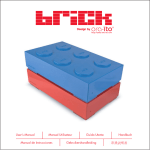
LaCie Brick Mobile Hard Drive
User Manual
Contacting Customer Support
page 26
6. Contacting Customer Support
■■Before Contacting Customer Support
1. Read the User Manual and review the Troubleshooting section.
2. Try to isolate the problem. If possible, make the drive
the only external device connected to your computer,
and make sure that all of the cables are correctly and
securely attached.
If you have asked yourself all of the pertinent questions in the troubleshooting checklist, and you still cannot get your LaCie drive to work properly, contact us us-
ing the contacts on page 26. Before contacting us, make
sure that you are in front of your computer and that you
have the following information on hand:
❖❖ The serial number of your LaCie drive
❖❖ Operating system and version
❖❖ Computer brand and model
❖❖ Amount of memory installed on your computer
❖❖ Names of any other devices installed on your
computer, including CD/DVD burners
■■Information to Include in Email Correspondence
Information
Where to Find Information
1. LaCie hard drive serial number
Located on a sticker at the back of drive or on the original packaging
2. LaCie hard drive file format
Mac users:
Select the hard drive icon on the desktop and press Command + I.
Windows users:
Right click the hard drive icon and select Properties.
3. Macintosh/PC model
4. Operating system version
5. Processor speed
Mac users:
Click on the Apple icon in the menu bar and select About This Mac.
Windows users:
Right click My Computer and select Properties > General.
6. Computer memory
7. The brands and models of other internal and external
peripherals installed on your computer
Mac users:
Click on the Apple icon in the finder bar and select About This Mac.
Select More Info... The Apple System Profiler will launch and will list
your internal and external peripherals.
Windows users:
Right click My Computer and select Properties > Hardware.