1
User Manual-4.0
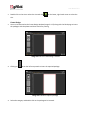
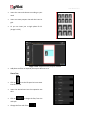
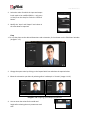
! You could undo the changes by clicking on
point in the process.
or load the original image by clicking on
at any
4.1.2 Other Icons on Basic Filter Page
Apart from the options that are available under Basic filter, there are few other ‘aids’ on the page that
help you as you proceed. These are discussed below.
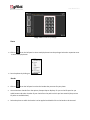
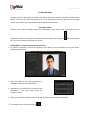
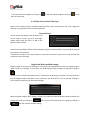
Correction Tool
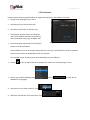
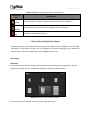
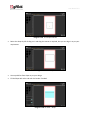
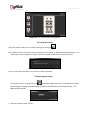
The correction tool appears with all options and
can be used to ‘correct’ any error that might
happen while using the filters, or add to the
effects already created.
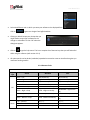
The brush size and feather effect can be altered by using the respective slider or by entering the value of
your choice in the value box.
! Remember to keep the Ctrl key pressed to activate the correction mode and to keep the Shift key
pressed to undo the change.
Original and Before and After Images
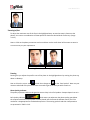
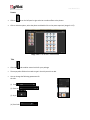
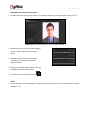
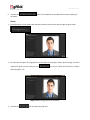
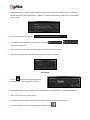
Original Image: In the course of working on your photos, you might decide to retain an original image or
make a fresh set of changes. In such cases, you could load the original image once again by clicking on
.
Once the icon is clicked the software asks for confirmation by displaying a text box. This text box warns
that all changes made on the photo so far will be lost. You could click on ‘Yes’ to proceed. Clicking on
‘No’ will take you back to your photo with changes.
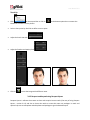
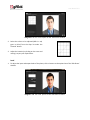
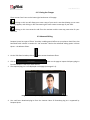
Before and After Images: After making a change, you could view how the photo looked just before the
change was made by clicking on
and how the photo looks after the change by clicking on
. This aids in better decision-making.