1
Working with the GUI
In offline mode the GUI is not connected to the embedded system. In this mode the replay of
previously stored telemetry data is enabled. The telemetry records can be read back one by
one or some records can skipped. This feature enables to slow or fasten the original time.
In online mode the GUI is connected to the embedded system. Everything is shown in real
time. The Power Simulator and the Space Wire interface can be controlled in this mode.
Before switching online the first time the IP address of the embedded system should be set by
selection of the “Network” - “Definition of TCP/IP Addresses” menu item. The last setting is
stored. To switch online use the network menu or click the globe symbol below it.
To avoid fail functionality (for example to receive noises on the space wire line) initially the
space wire interface is inhibited. To start communication it is necessary to initialize it through
the GUI interface by pressing “Init” on the “SpaceWire Controll” panel.
The possibility to compose command sequences (scripts) and to test them is enabled both in
offline and online modes.
Menu line and shortcuts
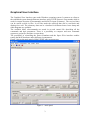
There is a menu line on the top of the window and some shortcuts below it. The selection of a
menu item displays a pulldown menu. Selecting a line of it starts further actions as
- display a submenu,
- changing a setting,
- activating a panel for file selection or data input.
The selection of a shortcut symbol activates a pulldown menu item.
TM File menu
The “TM File” menu has the following items:
- Read TM File
- Save TM File
- Log File Size
- Select Default Directory
- Save Default Directory
- Exit
-
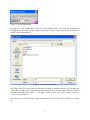
The “TM” shortcut below the “TM File” activates the “Read TM File” menu item as
well. A file selection window is displayed as shown on Figure 3. After selection with
double-click on the file name or pressing the OK button the “Read TM options”
window appears. See Figure 2.
4