1
10
Modes of operation
Checkboxes: Press the space bar or click with the mouse to alternate between checked (for
yes) and unchecked (for no) states. These are used to indicate, for example, whether
the program should operate on the rows of the input matrix or whether additional
information should be included in the output listing.
Once the fields have been filled--in correctly, click the Compute button to run the
program (since the Compute button has the focus initially, you can also just press the R
key). The Listing window will be opened to a new section and it will show a summary of the
input parameters you specified, information about the input files, and the results of the
computations. If you provided names for output files then these results are stored on disk
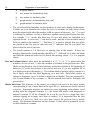
and are available as input to other modules. For some programs short-cut graphics speed
buttons will appear on the small toolbar at the bottom left of the parameter entry window.
Pass the mouse over the button to display the hint box describing the type of plot produced
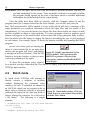
by each button. For example, Figure 2.2 shows the buttons available after running the EIGEN
program.
In case of an error (such as entering the
name of a non-existent file for an input data
matrix), the program will "beep" and display
a message in an Error Window. Click the OK
button to close this window so that you may
correct the problem and try again.
Figure 2.2. Graphic speed buttons for the
EIGEN module. The first button calls
MXPLOT to produce a 2D plot of the
eigenvectors and the second calls MOD3D
for a 3D plot.
To close the parameter entry window
for a module you may either click the Close button or simply select another module from the
NTSYSpc main window.
2.2
Batch mode
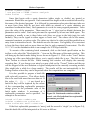
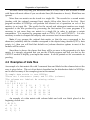
In batch mode NTSYSpc will attempt to
directly execute a sequence of modules
without displaying the parameter entry
windows for each. Commands are entered in
an ASCII file which can be prepared with an
editor such as Windows notepad or wordpad
(although the latter has the annoying habit of
always placing the extension .txt at the end of
a file name).
The following is a simple
example.
Figure 2.3. Batch mode window. Click the
"Load" button to select a batch file and then
click the "Run" button.
' standardize the rows of the data matrix
*stand o=data
r=sdata
' compute distances among the OTUs