1
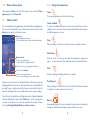
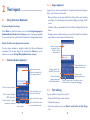
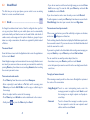
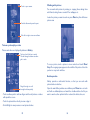
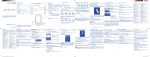
Touch to open camera.
Working with pictures
You can work with pictures by rotating or cropping them, sharing them
with friends, setting them as contact ID or wallpaper, etc.
Pinch the album and spread it apart.
Locate the picture you want to work on, press Menu key from full-screen
picture view.
Slide left or right to view more albums.
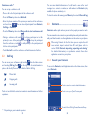
To view a picture/play a video
Pictures and videos are displayed by albums in Gallery.
Touch and scroll the bar to switch.
This will change the album view from
grid to stack.
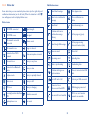
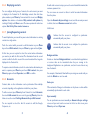
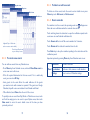
To crop a picture, touch a picture to view controls and touch Menu\
Crop. The cropping square appears in the middle of the picture. Select the
portion to crop, touch and Save.
Batch operation
Drag left or right to scroll
through the album quickly.
•Touch an album, pinch it with two fingers and then all pictures or videos
will spread the screen.
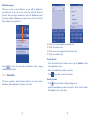
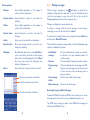
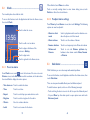
Gallery provides a multi-select function, so that you can work with
pictures/videos in batches.
Open the main Gallery window or an alblum, press Menu twice or touch
and hold one alblum/picture, and mark the checkbox before the file you
want to work on, then perform further actions, like delete, share, etc.
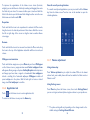
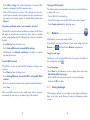
•Touch the picture/video directly to view or play it.
•Slide left/right to view previous or next pictures/videos.
85
86