1
Generally, it will take some time until you have everything set up for a full test. Make
sure that you experiment with your settings in the View Mode and look for potential
problems that might arise. Take a look at the appendix, which lists helpful keyboard
shortcuts (e.g. stopping test generation etc.) that you can use once a test is running.
5. Viewing and replaying the results During test generation in the Generate Mode, TESTAR will save erroneous /
suspicious sequences into the output directory. Once TESTAR has finished a test, you
might want to inspect those generated sequences to better understand faults or
problems. There are basically two ways to do that:
1. Replay the sequence: Of course this is the preferred way, since it shows you
directly what TESTAR has generated. When you start TESTAR you can click
on the Replay Mode Button and TESTAR will ask you for the file to replay.
Just select a sequence file of your choice and hit ok and TESTAR will try to
replay it. You can even slow down the sequence in case it was recorded at a
high speed (just lower the value for action duration). However, certain
sequences might not be reproducible, because the SUT is not in the correct
starting state (have you considered deleting / restoring settings files?) or the
sequence was recorded to fast (decrease the value of action duration and
action wait time during sequence generation). In that case you can…
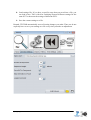
2. View Screenshots of the Generated Sequence: Just hit the button for the View
Mode (in the RU’s start screen). Again TESTAR will ask you for a file of a
recorded sequence. Browse to the location of the file and hit ok. Now you will
enter the RU’s View Mode, which will show you screenshots of each state that
the SUT has been in during sequence generation. Just keep hitting “Next” to
proceed to the next step. The View Mode will always work and it allows you
to see what happened on the screen during sequence generation, which can be
very helpful in case you are unable to replay a previously recorded sequence.
© Copyright 2014 FITTEST Consortium