1
Symbol Library
Renaming Symbol Categories
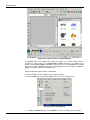
To rename a directory or category, do the following:
1.
2.
3.
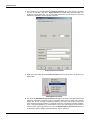
Select Rename from the File menu, or click on the Rename button on the toolbar.
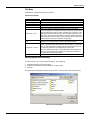
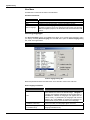
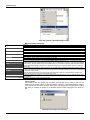
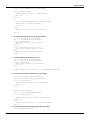
Enter the desired name in the field in the dialog box, as shown below.
Enter the desired name in the field, and click OK.
Rename Directory/Category
Deleting Symbol Categories
To delete a directory or category from the tree, do the following:
1.
2.
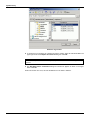
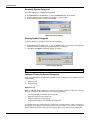
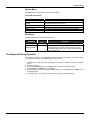
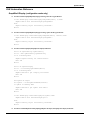
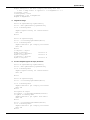
Select Delete from the File menu, or click the Delete button on the toolbar. This opens the
following message and allows you to delete a directory or a category.
Click OK or press Enter to delete the directory or category.
Delete Category Message
NOTE
The Delete key is not used to delete categories.
Password-Protecting Symbol Categories
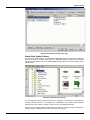
A lock is activated when some password is entered or set for a category file. It is possible to set two
different locks:
•
Read-only lock
•
Read-write lock
Read-Only Lock
When a read-only lock is applied to a category file, the file's content is visible but cannot be
changed. A read-only lock prevents the user from doing the following:
•
Changing the label of a symbol in the category file.
•
Deleting a symbol from the category file.
•
Pasting a symbol into the category file.
•
Dragging and dropping a new symbol in the category file.
The Symbol Library also reflects when the category file is system read-only. Again, all symbols in
the category file are visible, but the category itself cannot be modified. The user has to change the
system attributes (remove the read-only access right) to allow for any changes to the category file.
12