1
Setup Windows
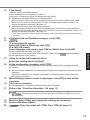
Select language and click [Next].
Turn on the computer.
Follow the on-screen instructions.
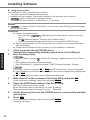
lThe computer restarts several times. Do not touch the keyhas
board or touchpad, and wait until the drive indicator
turned off.
lAfter the computer is turned on, the screen remains black
or unchanged for a while, but this is not a malfunction. Wait
for a moment until the Windows setup screen appears.
lDuring setup of Windows, use the touchpad and clicking to
move the pointer and to click an item.
lSetup of Windows will take approximately
5 minutes /
20 minutes.
Go to the next step, confirming each message on the display.
lYou can set the Wireless Network after the setup of
Windows is complete.
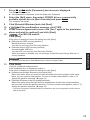
If “Get online” is displayed, select “Skip this step”.
“Join a wireless network” screen may not appear.
Verify the time zone, date and time.
l
Getting Started
6
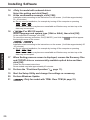
CAUTION
l You can change the user name, password, image and security setting after setup of Windows.
l Remember your password. If you forget the password, you
cannot use Windows. Creating a password reset disk beforehand is recommended.
l Use standard characters as a computer name: numbers 0
through 9, uppercase and lowercase letters from A to Z, and
the hyphen (-) character. If the error message “The computer
name is not valid” appears, check if characters other than
the above are not entered. If the error message still remains
on the display, set the key entry mode to English (“EN”) and
enter characters.
<For MUI OS model>
l When setting up the keyboard, choose the appropriate one
to your computer.
Otherwise, input by the keyboard may become unavailable.
l Do not use the following words and characters for user
name: CON, PRN, AUX, CLOCK$, NUL, COM1 to COM9,
LPT1 to LPT9, LPT, @, &, space. In particular, if you create
a user name (account name) that includes the “@” mark, a
password will be requested at the log-on screen, even if no
password has been set. If you try to log on without entering
a password, “The user name or password is incorrect.” may
be displayed and you will not be able to
sign in /
log on to Windows (è page 30).
11