1
SCREENWRITER
TEXT EDITING
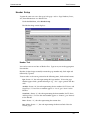
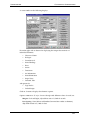
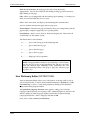
Roman Numerals (I, II, III...)
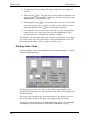
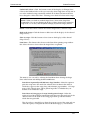
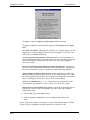
Print Headers On...
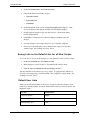
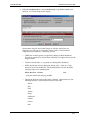
Determines on which pages you want the Header Text to print. Click on the
appropriate radio button to select:
Not Page One—Header Text will be printed on every page except Page One.
This is the accepted standard for Screenplays.
Every Page—Header Text will be printed on every page including Page One.
Every Page Except first Page of Scene—Header Text will not be printed on the
first page of a new Scene or Act. Used in some TV shows, as the Act/Scene
Information is already displayed.
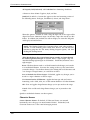
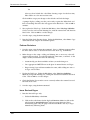
Align Headers
Items in Header Text can be aligned flush with the right margin, flush with the
left margin, or a combination of the two. Click on the appropriate radio button to
select:
Flush Left at Margin—Aligns Header Text flush with the Left margin, using
the default Left margin selected in Page Layout. Enter a new Left margin for
Header Text only, if desired. Accepts values in 1/10” increments, between 0.3
and 8.
Flush Right at Margin—Aligns Header Text flush with the Right margin,
using the default Right margin selected in Page Layout. Enter a new Right
margin for Header Text only, if desired. This is Screenwriter’s default for
Header Text alignment. Accepts values in 1/10” increments, between 0.3 and 8.
To have some items align flush left and others align flush right, insert a Flush
Right code (^) between them. For example, “Act @^Page #.” would place “Act 2”
flush left and “Page 3.” flush right on the same line.
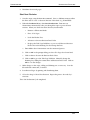
Blank Lines following Header
Select the number of blank lines to insert between the Header Text and the page’s
first line of script text (or Top Scene Continued). Default is 1 blank line.
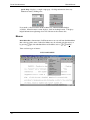
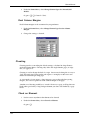
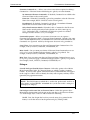
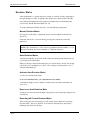
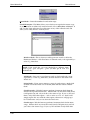
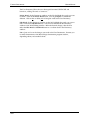
Preview
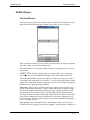
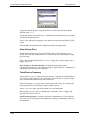
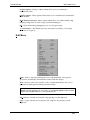
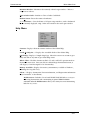
Click this button to see a Print Preview of the current page, showing your Header
Text. Click on the appropriate button for:
Print—Sends the onscreen page to the printer, formatted exactly as it looks (but
at 100% size).
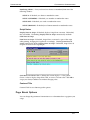
Prev.—Goes to the previous page in the script.
Next—Goes to the next page in the script.
Close—Exits the Print Preview screen.
99.