1
Configuration Management
C
CONFIGURATION MANAGEMENT
This appendix covers:
• Backing up and restoring configuration settings
• Replacing a Meter
• Monitoring changes to configuration settings.
• Restoring a meter to factory configuration settings (wiping out any undesired settings)
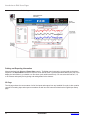
Backing Up and Restoring Your Configuration
You should save your current configuration settings to a file (in XML format), which can then be used in
case a problem develops and you must restore your meter configuration at a later time. Backing up your
configuration makes it easy to return to a working configuration or to install the correct configuration in a
replacement meter. After you’ve finalized the configuration for your meter, create a configuration backup
file and store this in a secure place.
The primary reason to create a backup of your working configuration is so that you can easily
restore these settings should they be unintentionally changed either by a user or hardware fault.
This is also a handy feature if you’re setting up multiple meters with either the same or similar
settings. You can set up one meter, download the configuration file to your local computer, and
then upload that same configuration file to other meters. Note that network settings are part of
the backup, so if you upload a configuration file to another meter you must adjust its network
settings appropriately.
Backup files are downloaded to your browser’s default download folder. After creating a backup
file, you should archive this in a safe location.
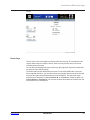
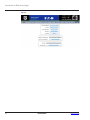
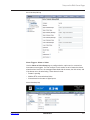
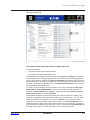
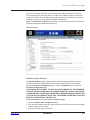
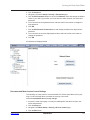
To download the current configuration file:
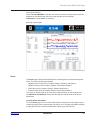
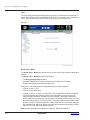
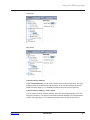
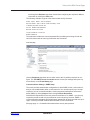
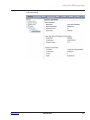
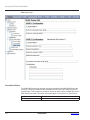
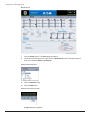
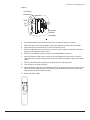
1. Click Setup.
2. Expand Meter Setup & Commissioning.
3. Click Save/Restore Settings.
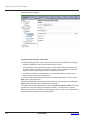
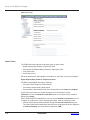
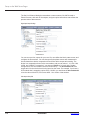
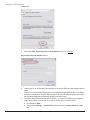
4. Click the Save and Restore Configuration button.
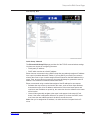
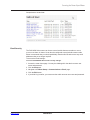
5. When prompted, type the admin account User Name and Password.
6. Click the Save meter configuration button.
7. Click OK.
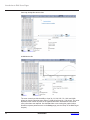
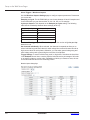
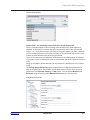
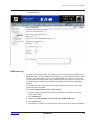
To upload a configuration file to a meter:
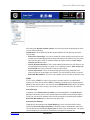
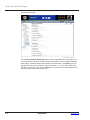
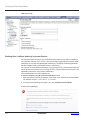
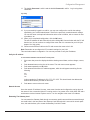
1. Click Setup.
2. Expand Meter Setup & Commissioning.
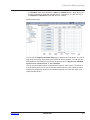
3. Click Save/Restore Settings.
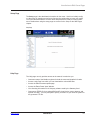
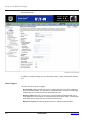
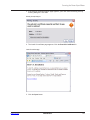
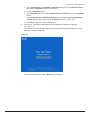
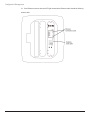
1. Click the Browse button beside the Configuration file to restore field.
2. Select the configuration .xml file.
3. Click OK.
www.eaton.com
IM02601001E
C-1