1
CHAPTER 5. USER PREFERENCES AND SETTINGS
5.4
132
Advanced preferences
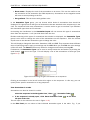
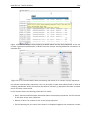
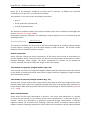
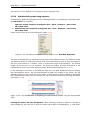
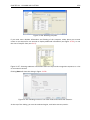
The Advanced settings include the possibility to set up a proxy server. This is described in
section 1.8.
5.4.1
Default data location
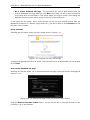
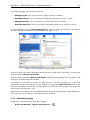
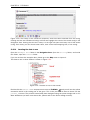
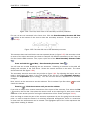
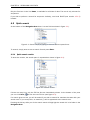
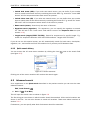
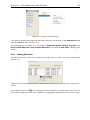
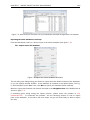
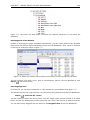
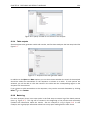
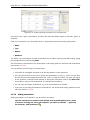
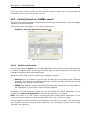
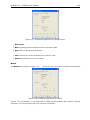
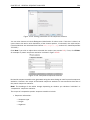
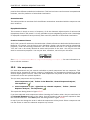
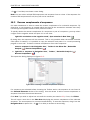
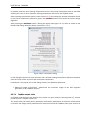
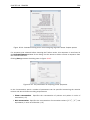
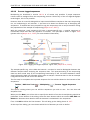
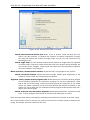
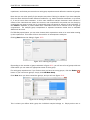
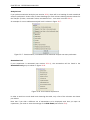
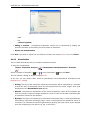
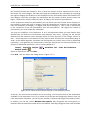
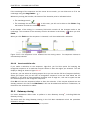
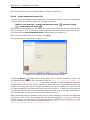
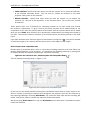
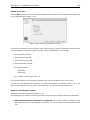
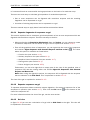
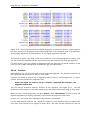
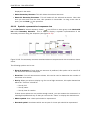
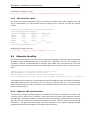
If you have more than one location in the Navigation Area, you can choose which location should
be the default data location. The default location is used when you e.g. import a file without
selecting a folder or element in the Navigation Area first. Then the imported element will be
placed in the default location.
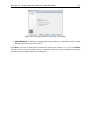
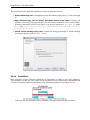
Note! The default location cannot be removed. You have to select another location as default
first.
5.4.2
NCBI BLAST
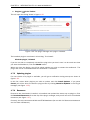
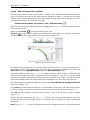
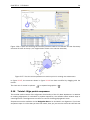
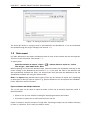
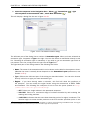
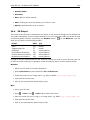
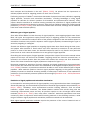
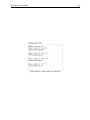
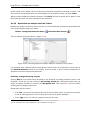
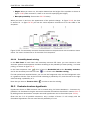
URL to use for BLAST
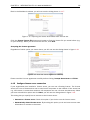
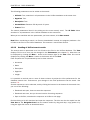
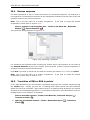
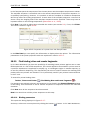
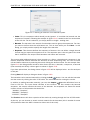
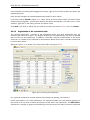
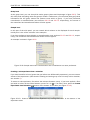
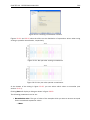
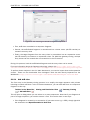
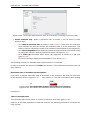
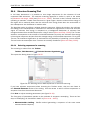
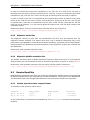
It is possible to specify an alternate server URL to use for BLAST searches. The standard URL
for the BLAST server at NCBI is: http://blast.ncbi.nlm.nih.gov/Blast.cgi.
Note! Be careful to specify a valid URL, otherwise BLAST will not work.
5.5
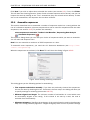
Export/import of preferences
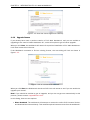
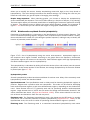
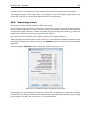
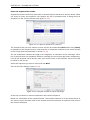
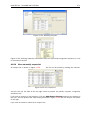
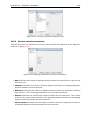
The user preferences of the CLC Main Workbench can be exported to other users of the program,
allowing other users to display data with the same preferences as yours. You can also use the
export/import preferences function to backup your preferences.
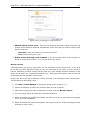
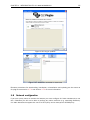
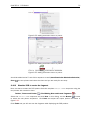
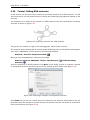
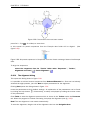
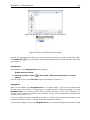
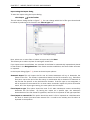
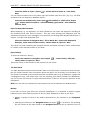
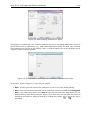
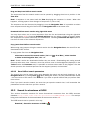
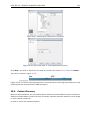
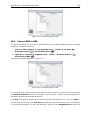
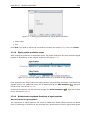
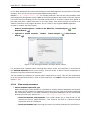
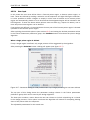
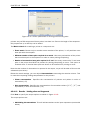
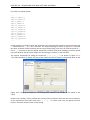
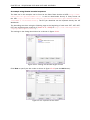
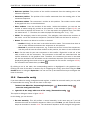
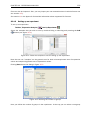
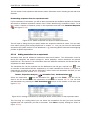
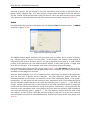
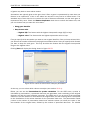
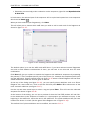
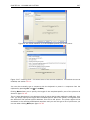
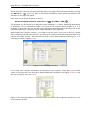
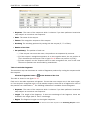
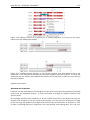
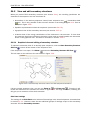
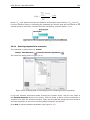
To export preferences, open the Preferences dialog (Ctrl + K (
+ ; on Mac)) and do the following:
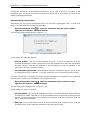
Export | Select the relevant preferences | Export | Choose location for the exported
file | Enter name of file | Save
Note! The format of exported preferences is .cpf. This notation must be submitted to the name
of the exported file in order for the exported file to work.
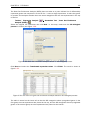
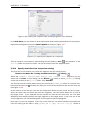
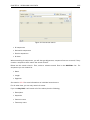
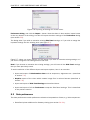
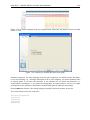
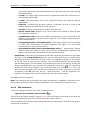
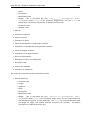
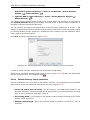
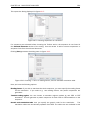
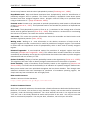
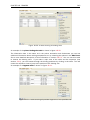
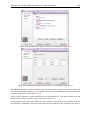
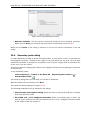
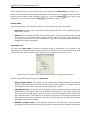
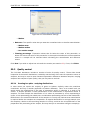
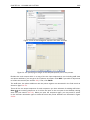
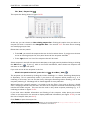
Before exporting, you are asked about which of the different settings you want to include in the
exported file. One of the items in the list is "User Defined View Settings". If you export this, only
the information about which of the settings is the default setting for each view is exported. If you
wish to export the Side Panel Settings themselves, see section 5.2.2.
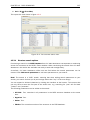
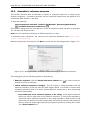
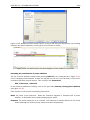
The process of importing preferences is similar to exporting:
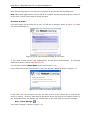
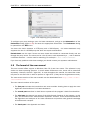
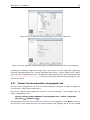
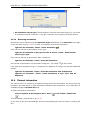
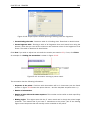
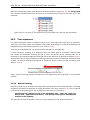
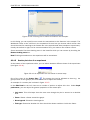
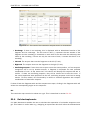
Press Ctrl + K ( + ; on Mac) to open Preferences | Import | Browse to and select
the .cpf file | Import and apply preferences
5.5.1
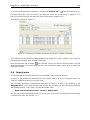
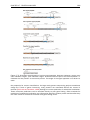
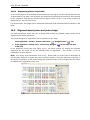
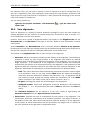
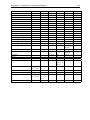
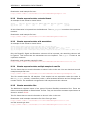
The different options for export and importing
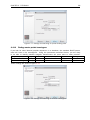
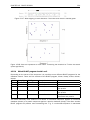
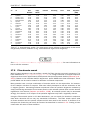
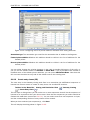
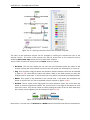
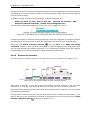
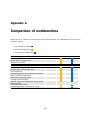
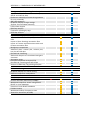
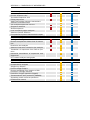
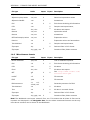
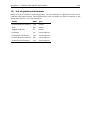
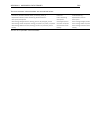
To avoid confusion of the different import and export options, here is an overview: